
Accounts, profiles and projects
Three words organise everything in cterm. A profile is a Claude login on this Mac (personal, work). An account is a person who signs in to cterm, an admin or a user. A project is a folder that an account works in, with its sessions, its settings and its roadmap. This page explains how the three fit together and where you manage each one.
What it is for
- Profiles keep separate Claude identities apart. Each has its own login, settings, plugins, memory and transcripts, so a work subscription and a personal one never mix.
- Accounts let other people use cterm on this computer. Each account has a username, a password and a role. An admin can do everything. A user runs Claude sessions in their own projects only: no shell sessions, no profile logins, no account management; their settings hold only their own machines, where they can run their sessions on their own Claude instead (Your own machine).
- Projects group sessions by folder. A project carries the defaults a new session starts on (model, permission mode) and the switches that decide what cterm does for it (worktrees, pull requests, the brief, the roadmap, artifacts, ideas). Each project belongs to one account, which can share it with others.
- Members are the other accounts a project is shared with. They see it in their own list and work in it beside its owner, each in sessions of their own.
How to use it
Switch between profiles
The profile tabs sit at the top of the sidebar, each with a dot for its login state. Click a tab to see that profile's projects and sessions; a new session you start from there runs on that login. The account foot at the bottom of the sidebar shows the selected profile's login: its email and plan, or Log in when it is not signed in, which opens Claude's own login flow in a terminal pane. It is one row: the avatar, the name over the plan, then Skills & agents, the settings cog, Help and sign out at the right end. Click the avatar for the account menu, which holds what you set once in a while: the colour theme, the tool view and Re-check the Claude login. A long name ends in "…" with its tooltip holding it all; on a sidebar dragged too narrow for the name beside the buttons, the buttons move to a line of their own under it, still at the right.
Profiles are an admin's. A user sees no profile tabs: their sessions run on this computer's default Claude login.
Add, rename or hide a profile
- Click the + at the end of the profile tabs, or the cog in the account foot. The settings view opens with Profiles first.
- Type a name (letters, digits,
-and_, for examplework) and an optional label, then click Add. - Change a label in its field to rename the tab. The × beside a profile hides it; nothing is deleted. A new profile starts signed out: select its tab and click Log in.
Manage accounts and their folders
An admin manages accounts in the settings view's Accounts card: open the cog in the account foot. It lists every account with its role, its sessions and projects and its signed-in devices; for a user it shows the root and the granted folders. Your own row says you.
Add an account
- Click + account under the list.
- Type the username and pick user or admin.
- For a user, pick the root, the folder they work under, with the folder picker. Leave it empty for
~/cterm/<username>/; a folder that does not exist yet is made. - Type a password twice (at least 8 characters), or leave both fields empty to set one later. An account without a password cannot sign in.
- Click Add account. The new row shows at once and the form closes.
Accounts need a password on your own account first: until cterm asks for a login, everybody acts as the first admin.
Change an account from the ⋯ at the end of its row:
- Make an admin asks first: an admin may do everything, and the folders granted to them go. Make a user
opens the folder picker for their root (empty for
~/cterm/<username>/). - Change root (a user's) picks the folder they work under. Their projects elsewhere stay listed.
- Set password takes the new one twice. A change signs out every device of that account; on your own account the browser you use stays signed in.
- Trusted devices (also the device count on the row) lists each signed-in browser with when it was last seen. Revoke signs one out, Revoke all every one of them (on your own account, all but this browser). A device that is signed out goes back to the login page at once.
- Remove asks first, naming the account's sessions, projects and devices. Its projects leave the list and its devices are signed out; its folders and transcripts stay as they are. An account with sessions in the list is removed once those sessions are.
You cannot change your own role or remove your own account here: another admin can.
Folders: for a user, + folder opens the folder picker; pick an existing folder and click Grant. The × beside a granted folder takes it back after a question. The user's projects there stay listed, but no session starts in them until the folder is granted again.
Sessions take a role, a root, a grant or a revoke at their next start.
The same can be done from a terminal on the Mac, which works even with the daemon stopped (the way back in when nobody can sign in any more):
cterm user add dana --role user          # a user, with a root folder at ~/cterm/dana/
cterm user add sam --role admin
cterm user set-password dana
cterm user grant dana ~/projects/blog    # an existing folder she may also work in
cterm user list
cterm user revoke, set-role, set-root and remove (with --purge for an account that still has sessions,
with the daemon stopped), and cterm auth sessions|revoke, do the rest.
Make a new project
- Click the + in the head of the Projects list.
- Type the project's name. The folder fills in from the name under your projects folder (a user's root); pick another with the folder picker. A folder that does not exist yet is said under the picker and made for you.
- Pick the default model and permission mode new sessions start on, and set the switches you want now.
- Click Create project.
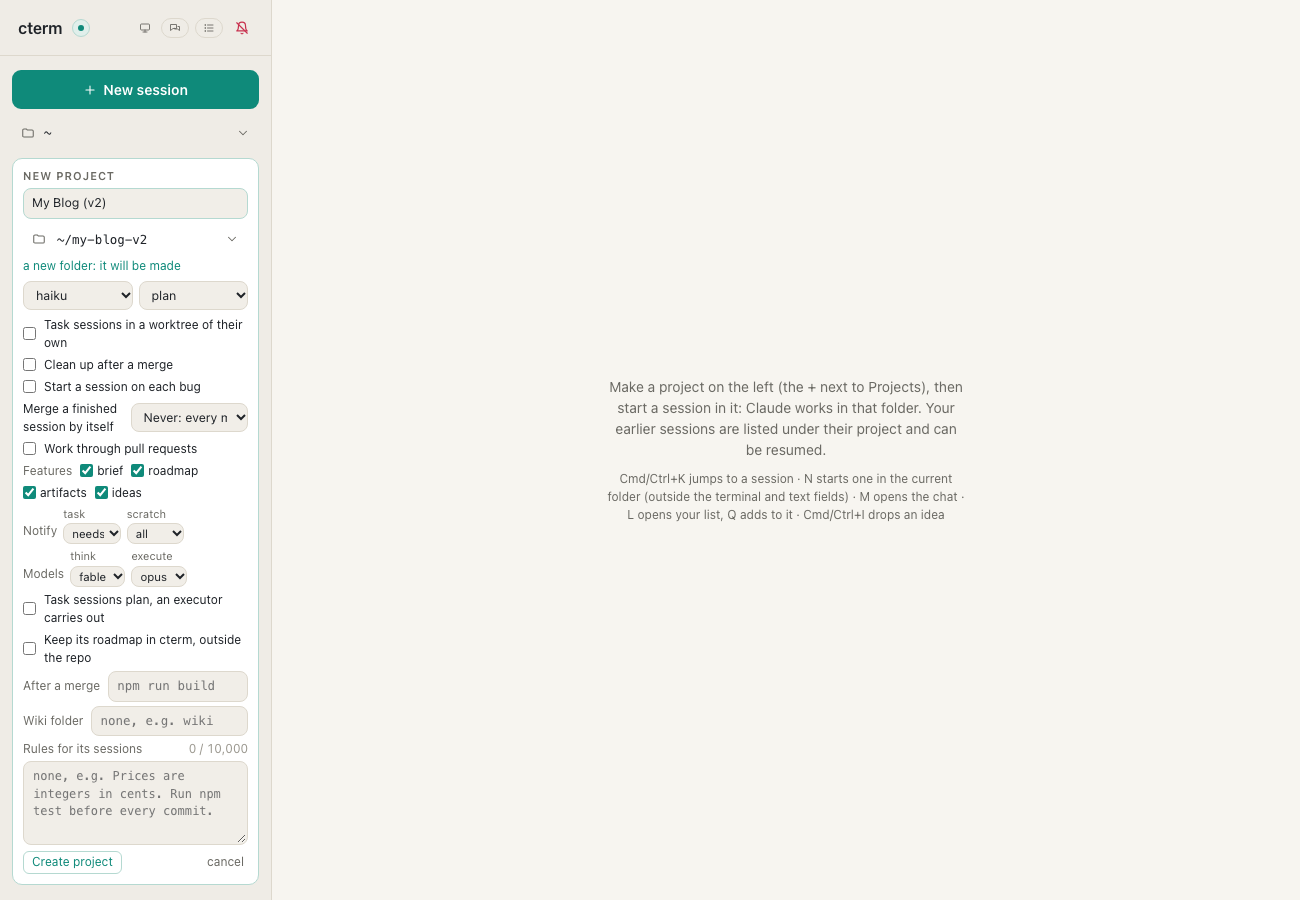
projects-test.mjsStarting a session in a folder that is no project yet also lists it as one. A project you made or edited yourself stays in the list even with no sessions; one made only for a folder's sessions goes with its last session.
Import projects from Claude's records
Claude Code already knows every folder a login has worked in. An admin can turn those into projects at once:
- Open the ⋯ menu in the head of the Projects list and choose Import from Claude's records….
- The Folders Claude knows view lists the selected profile's folders, newest activity first, with the last session, the transcripts on disk and the memory facts. Folders that are nobody's project yet come checked. Two switches add gone folders and worktrees and temporary folders.
- Pick the account under Import as and click the import button. One line per folder says what happened.
Importing a user's folder that lies outside their root grants it to them first; nothing is moved. From a terminal,
cterm project known lists the same folders and cterm project import <user> <folder> imports one.
Work in the sidebar
Each project is a group in the session list. Its head carries a grid button that opens the project page, buttons for its roadmap, artifacts and Claude's memory of the folder (each with its count), the cards waiting for you, and a ⋯ menu (also on right-click) with Project page…, New session here, Project settings…, Roadmap…, Artifacts…, Wiki…, Memory…, History… and Remove project. Remove project stays disabled while the project still lists sessions, and it removes the project from cterm only: the folder stays.
Inside a project, sessions can go in folders (the row menu's New folder…) and carry tags (Tags…); Sessions covers the row menu.
An admin sees other accounts' projects and sessions with their owner's name, read-only. Hide other people's sessions in the list's ⋯ menu keeps your own list clean, the projects shared with you staying in it; the choice is kept for your account. A project shared with you shows once, under its owner's name.
Share a project with other accounts
Two people working on one folder share one project instead of keeping a project each.
- Open the project's Settings tab (Project settings… in its menu). The owner and admins see it.
- Under Members, type the other account's name and click Share. An admin picks it from the accounts.
- The project appears in that person's sidebar at once, under your name, with its sessions, roadmap, files and artifacts. Its head shows two people; the tooltip names the members.
What a member may do:
- Watch every session of the project: yours and the other members'. Theirs are read-only for them, the way an admin watches other people's sessions.
- Start sessions of their own in it: New session here, Start a session on this on a roadmap card, or the master chat. Those sessions are theirs to drive, and you watch them in turn. A user's sessions keep a user's rules: Claude only, on the default login, never in bypass mode.
- Work in its files, roadmap and history: write files, file ideas and bug reports, change items and notes, save a version. The project's folder is theirs to open without a grant.
- Comment on every session of the project, yours included: on the conversation or a passage of it, naming you or assigning it to Claude, which waits for your Send to Claude (see Sessions).
- Not: change the project's settings or members, drive or close somebody else's session, make or change its routines, which run as you.
Remove beside a member takes them off after a question. Their sessions there stay in their list, and in
yours; they no longer see the project, and no session of theirs starts or resumes in its folder. From a terminal,
cterm project share <owner>/<project> <user> and cterm project unshare do the same, and cterm project list
names the members.
Group projects into a product
An app made of several repos (the API, the web, the mobile app) is one thing to you, but three projects to cterm. A product groups them under one roadmap: every member's sessions, steward and Stop check read and write the same roadmap, kept in cterm.
- Open the Settings tab of the project that holds the shared part, the API, say. Under Part of a product,
type a name, such as
Playground, and click Make a product. That project is the product's anchor: the steward's work for the product runs in its folder. - Open each other project's Settings tab, pick the product under Part of a product and click Join. Only the owner's own projects join, and a project is in one product at most.
- Every member's roadmap is now the product's. Leave the product takes a project out again: it goes back to the roadmap it had, or to a new empty one kept in cterm. The anchor leaves last.
A project with no roadmap or an empty one simply joins; an empty roadmap of its own is set aside untouched while the project is a member, and comes back when it leaves.
A project whose roadmap already has items is offered the merge when it joins (or makes a product): cterm says how many items it has and asks whether to move them into the product's roadmap. On Merge and join:
- its items go under one new item named after the project, after the product's own. Their ids are renumbered
under it, keeping the old number readable: with the new item
p4,p1becomesp4.1andp1.2becomesp4.1.2; - everything that names an item follows: what waits on what, a scope line moved to another item, the features, the
log entries (in the product's log by date) and the changelog's entries (numbered after the product's own). The
files an item touches get the project's name in front,
web:src/login.tsx, its ideas join the product's inbox, and a ranked item keeps its place in the queue after the product's ranked items; - its own roadmap's files leave its repo in one commit, pushed unless the project works through pull requests (a roadmap it kept in cterm simply moves). A copy of them stays in cterm with the map of the old ids to the new;
- the sessions on its items, their notes and their checks name the new ids.
Saying no leaves the project out of the product, its roadmap as it was. The merge waits while a steward job or a task or define session of that project or of any member runs. A project that leaves later goes back to a new empty roadmap: the merged items stay the product's.
From a terminal, cterm product add <owner>/<name> --anchor <owner>/<project> [--member <owner>/<project>]… makes
one, cterm product set <owner>/<name> name|anchor|add-member|remove-member … renames it, picks another anchor
or changes its members, cterm product set <owner>/<name> interface <owner>/<project> [<glob>…] sets a member's
interface globs (none clears them; quote each so the shell leaves the stars alone), cterm product list shows them, and cterm product remove takes every member out (the
product's files stay in cterm). add and add-member refuse a project whose roadmap has items unless you add
--merge, which merges them as above.
The product page
In the sidebar's Projects view the members sit under the product's head, a fold of its own. The grid button on that head opens the product page, alone in the main area like a project's page, with four tabs:
- Roadmap: the whole product's roadmap, every member's items, and the inbox of every member, each row marked with the member it was filed in. It is the same roadmap panel a project has, with its search, order and cards.
- Triage: what each member's inbox holds, waiting for the steward, under the product's one steward queue: its last job and Triage now, which triages every member's inbox at once. A row opens on the Roadmap tab.
- Members: each member with the number of items that name it; Make anchor, Take out, and a project of the owner's to add.
- Settings: the product's name, its anchor, and each member's interface globs: the files of that member the others use, such as an API's routes folder, an OpenAPI file or a shared types package, one per line, relative to the member's folder. A merge that changes one of them tells the open items of the other members that use it (see below).
Whoever sees one of the members sees the product page; its owner and admins change it.
Each member's own roadmap tab, and its project page, show only the items that name it, with their parents for the path and the member's own inbox rows; the anchor's also shows the items that name no project. A link at the top, all of Playground, opens the product page. The roadmap page says how an item names its projects.
Sessions and the steward across a product
A session on an item works in the item's first project, in its worktree there, and reads the other members: cterm gives it their folders, and its brief names each one with its project, to read and never to change. A session changing the web app can look up the API's routes while it works. When the work needs a change in another member, the session does not make it: it becomes a child item naming that project, so its own session starts in that project's folder. A define session is told the same, and splits an item that spans members into one child per project. A plain session in a member reads only its own folder.
The product has one steward: an idea or a bug report filed in any member goes to the product's queue, and the steward's jobs run in the anchor's folder with the other members at hand. One triage takes every member's inbox, each row naming the member it was filed in, gives every item it places or ranks the projects it touches, and puts a bug report on the project where its cause is, after reading the members' code: an error seen in the web app may be the API's. Triage now and Run again on any member's roadmap run that same queue, and a member's own jobs stop while it is in the product. Asking the roadmap and Still valid? read the other members too.
Waits and holds look at the whole product. Work that changes two members is split into one child item per
project, the later waiting for the earlier one's merge: the web app's page waits for the API's route, a plain wait
on the one roadmap. The files an item touches name their member as a prefix (api:src/routes/users.ts; one
without is read as the item's first project), and a session's branch is read in the member it runs in, so a start
cterm makes by itself waits for a session of any member working on the same file of the same repository, never for
the same path in another. Its limit of two sessions started by itself at once counts the whole product.
When a member's interface changes, the others hear of it. A merge of a task session's branch into a member
that declares interface globs is compared with them: when it changed one of those files, a route in src/routes,
say, the steward's job for that merge reads the other members' code for what uses it, and leaves a concern
note, signed steward, on each of their open items whose work uses what changed, naming the change and the use.
A use in their code that no open item covers is filed as an idea in that member's inbox, for the next triage. A
member without interface globs changes nothing: its merges are recorded as before.
Change a project's settings in short
A project's settings live in its page's Settings tab, open to the owner and to admins (Project
settings… in the menu lands there); the project page explains each section. From a terminal,
cterm project set <owner>/<project> <switch> on|off sets the same switches; staleCheck is the Roadmap
section's Check stale Todays after a merge.
How it works
The daemon keeps accounts, trusted devices, projects and the session index in one SQLite file,
~/.cterm/cterm.db, and checks every request against the account's role (permissions.ts); the web app only hides
what you may not use. Passwords are stored hashed, and a signed-in device stays signed in for 90 days of use,
until it signs out or the password changes.
A profile is a Claude config directory: default is ~/.claude, any other is ~/.cterm/profiles/<name>, and the
session gets it as CLAUDE_CONFIG_DIR. cterm reads the login state with Claude's own claude auth status.
A product is a row in the same store, and each member project names it. Its roadmap lives in
~/.cterm/roadmaps/product.<name>-<hash>/, and each member's own place there holds a small pointer file to it,
which cterm and the roadmap skill's script both follow, with the daemon stopped too, from the member's folder,
any folder under it and its worktrees. Since every member reads the same roadmap, a member's view of it carries the
store's rows of every member folder (the inbox, the notes not yet copied, the checks, the costs), each inbox row
naming its member, and a member's tab cuts that view down in the browser (product.ts). A member's interface
globs are kept in the store and written beside the product's roadmap, in its product.json. The merge of a joining
project's items is the script's product merge command, which writes both roadmaps under their locks, keeps the
member's old files and the id map in its own place (merged/) and writes the pointer; the new item names the
member, so the merged items show on its tab. cterm runs it, then moves the sessions' links, notes and checks to the
new ids.
A shared project keeps one owner and a list of members in the store. A member's session is filed under the shared project but keeps its own owner, so the daemon lets the member drive it and everyone else in the project watch it. Every session runs on this Mac, in the project's folder, whoever started it.
A user's session runs on the default login but without the operator's part of it: no user settings, hooks,
plugins or personal CLAUDE.md, no MCP servers and no claude.ai connectors. It gets its own folders as the
directories it may reach. It is refused the commands that read your login Keychain (security
find-generic-password and its kin) and reading the keychain files, and so are the steward's jobs, the Ask, Still
valid? and the wiki's harvest on a user's project, which run without asking. Accounts are access control, not
isolation: every session runs as the same macOS user, so they suit people you trust.
The import reads two of Claude's records for the login, the projects entries of .claude.json and the
transcript folders under projects/, and never the account block of .claude.json.
Scenarios
A work login beside a personal one
You use one Claude subscription for your own projects and your employer's for client work. You add a profile
named work with the label Work, select its tab and click Log in; the terminal pane walks you through
Claude's login. From then on the Work tab lists only the client projects, and their sessions bill the work plan.
A friend gets a corner of the Mac
A friend wants to try Claude on a small site. You run cterm user add marta --role user, set her password and
grant her ~/projects/site. She signs in from her laptop, makes a project in that folder and starts sessions.
You see her project with her name on it, read-only, and hide it with Hide other people's sessions.
Two people on one site
Marta and Pau build the same site. Marta made the project; she opens its Settings tab, types pau under
Members and clicks Share. Pau's sidebar now lists the project under Marta's name. He opens her session to
see where she got to, cannot type into it, and clicks New session here to take the contact form himself. Marta
sees his session appear in her list and follows it while she works on hers. Both file ideas into the same roadmap.
Two years of folders, one click
On a fresh cterm the sidebar is empty, but Claude has worked in forty folders on this Mac. You open Import from Claude's records…, keep the checked folders that still exist, untick two old experiments and import the rest as your own, each with its memory a click away.
Related
- The project page: a project's numbers, tabs and its Settings tab.
- Sessions and the rich pane: starting sessions, the row menu, marks, tags and folders.
- Setup and skills: the settings view, rules for every session, backups and Claude's own settings.
- Remote access: signing in from another computer or a phone.
- Getting started: installing cterm and setting the first password.