
The brief
A session's brief is a short account of its conversation, kept beside it: one sentence on where the session stands right now, the questions still waiting on you, and the threads of work as topics with their state and their main points. A model rewrites it after each turn, so you can catch up on a long session in a few seconds without scrolling back through it.
What it is for
Long sessions drift. After an hour of tool calls it is hard to say what was decided, what was dropped and what Claude asked you that you never answered. Coming back to a session after lunch, or checking on one from your phone, you want the state of the work, not the transcript.
The brief gives you that. It leaves out the noise (tool output, commit hashes, test counts, build steps) and keeps the subject of the work: what you are building, what was settled and why, what is parked and what is done. It is written for you, not for Claude: the session never sees its own brief, unless you choose to give it one.
How to use it
Open the panel
Press Brief in the session's head. The panel opens beside the rich pane and stays open as you switch sessions, so you can read one brief after another. A dot on the button means the brief is on for that session. On a phone, Brief is in the head's More menu.
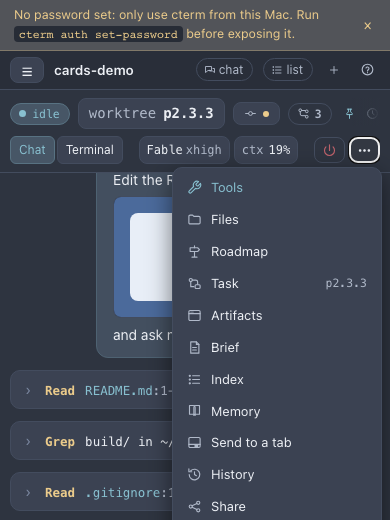
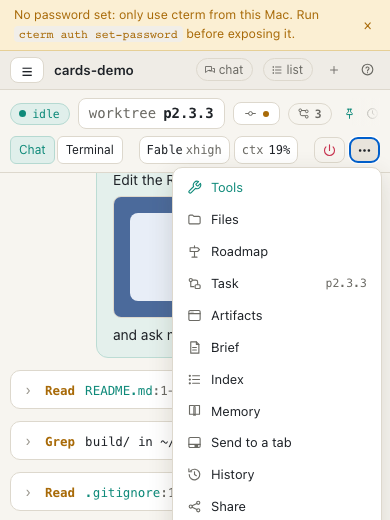
ui-shots.mjsSwitch it on
The brief runs only for sessions it is switched on for. In the panel, press Keep a brief of this session, or turn on the Auto switch in its head. The first brief is written straight away from the conversation so far; after that it updates when each turn ends. Turn Auto off to stop the updates; what was written stays.
Update asks for a new brief now, without waiting for the turn to end. With nothing new since the last one, it revises the brief so far from the whole conversation.
Only the session's owner switches a brief on or updates it. Anyone who can see the session, such as an admin watching a user's session, can read it.
Read it
From the top:
- The now line, in larger type: where the session stands this minute, the way a colleague would answer "where are you with this?".
- Pending for you: questions Claude asked and choices it left to you that are still open. Reply puts the question in the prompt box so you can write your answer under it.
- Topics, one per thread of work, each with a status (active, parked or done), a short summary and its points. Active topics come first. With several topics, the chips all, active, parked and done filter them.
Each point and pending question says when it came up ("8 min ago", the exact time in its tooltip). Click that and the conversation scrolls to the prompt it came from.
The line under the title says when the brief was last updated and how many calls it has taken.
Take it elsewhere
Copy puts the brief on the clipboard as markdown. Insert in the chat drafts it in the prompt box with a line saying what it is, so you can hand it to Claude after a compaction or at the start of a new session on the same work. Nothing is sent until you press Send.
Where else it shows
The now line travels further than the panel. It is what a session row's tooltip says in the sidebar, what the "finished" notification says, the line under a session on the project page and in its Now strip, and the line the master chat leads with when a session's answer is long. Add to the roadmap… also starts from the brief: the now line as a title when the session has no name, and the topics as the item's text.
Admin settings
Two commands set the brief for everyone on the Mac:
cterm brief status                 # the model and whether new sessions start with it on
cterm brief model sonnet           # the model briefs run on (haiku by default)
cterm brief auto on                # every new Claude session starts with its brief on
A project's owner or an admin can also turn the brief off for a whole project under Features in the project page's Settings tab; its panel then goes away and nothing runs for that project.
How it works
cterm makes no API call and takes no API key. Each update is one run of Claude Code itself in its
non-interactive mode, claude -p, on the same Claude login the session runs on, with no tools, no project files
and none of your own setup, and nothing saved as a conversation. It runs about a second and a half after a turn
ends (Claude Code's Stop hook, or the registry noticing an interrupted turn), one at a time per session and two at
most across the daemon.
The model gets two things: the brief so far, and a digest of what happened since the last update, built from the same events the rich pane draws. The digest holds your prompts, numbered by turn, Claude's text, one line per tool call saying what it was about, questions and their answers, plans and compactions; tool output stays out. It is told to write in the language you write in and to stay on the subject of the work. The answer comes back as JSON through a schema: the now line, the pending items and up to twelve topics. A reply that does not fit leaves the brief as it was and shows the error in the panel.
Briefs are kept in cterm's store (~/.cterm/cterm.db), one per session, and removed with the session. The code is
in the daemon's brief.ts and the web app's BriefPanel.tsx.
Scenarios
Back from lunch
You left a session halfway through a database migration. Instead of scrolling up, you open the brief: the now line says the schema change is in and the backfill script is next, one topic is parked waiting on a decision, and Pending for you holds a question about keeping the old column. You press Reply, type "drop it after the backfill" under the question, and send.
A fresh start on the same work
The context is nearly full and the conversation has wandered. You open the brief, press Insert in the chat, then clear the conversation from the context chip and send the brief as the first prompt. Claude carries on from a clean summary of what was decided, without the dead ends.
Watching from the phone
As an admin, you check from your phone on a session a colleague runs under their own account. You can watch it, not drive it, but its brief tells you which topic is active and what was finished this morning, which is all you needed to know.
Related
- Sessions and the rich pane: the head, the list and its tooltips.
- The terminal and the prompt box: compact and clear, where Insert in the chat helps.
- The project page: the Now strip and the sessions list that show the now line.
- The master chat: long answers led by the brief's line.
- The roadmap: Add to the roadmap, drafted from the brief.
- Sharing: a share link's page shows the brief, read-only, while you keep it on.