
The master view
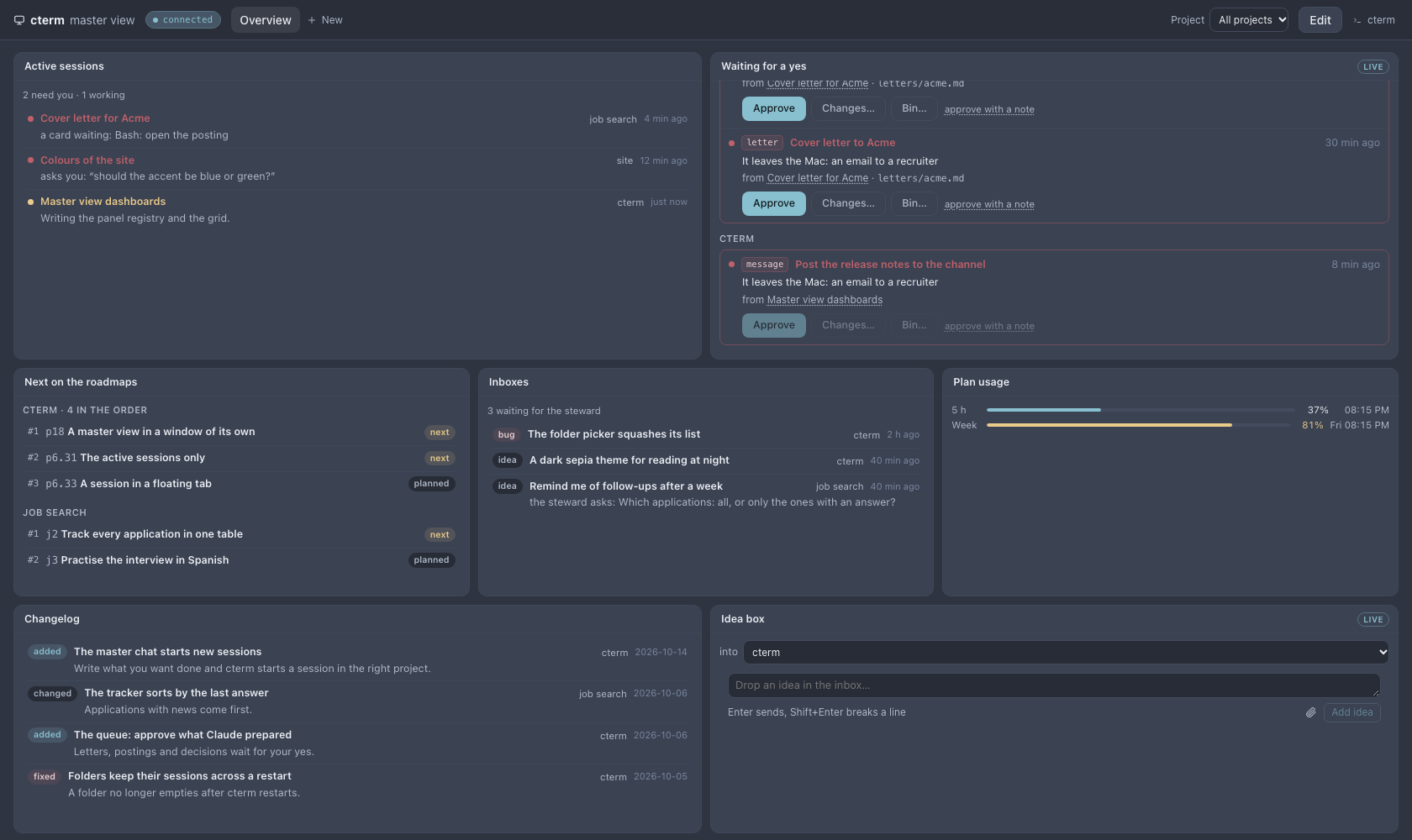
The master view is a separate window that looks across all your projects at once. It holds dashboards, each a grid of panels you choose and arrange: the sessions that need you, the work waiting for your yes, the next items on your roadmaps, your plan's usage, a live session's chat, the master chat. It is made to sit on a second monitor while you work in the main cterm window.
master-shot.mjsWhat it is for
The main window shows one session or one project at a time. When several sessions run in several projects, you end up clicking through the sidebar to find out which one is waiting on you. The master view answers that at a glance:
- What needs you now, across every project, in one list.
- What to approve: the drafts Claude prepared that wait for your yes, with the buttons to answer them.
- What comes next: the first items of each roadmap's order, and the ideas the steward has not placed yet.
- How much is left of your plan's five-hour window and week.
- One session kept in view, live, to follow and answer without leaving the main window.
- A place to write: the master chat itself, so the second screen is where you type too.
How to use it
Open it
Press the monitor button in the sidebar's head, or D anywhere outside the terminal and text fields. The master
view opens in a window of its own; pressing again brings back the one already open instead of opening a second.
Drag it to your other screen. It signs in with the same account as the app, and its address (/master) works in a
plain tab too.
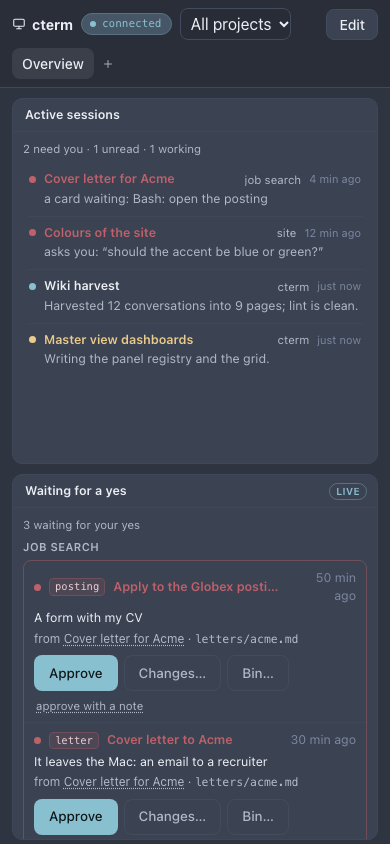
The first time, it shows Overview: Active sessions, Waiting for a yes, Next on the roadmaps, Inboxes, Plan usage, Changelog and the Idea box. It is saved for your account only once you change it.
Read the panels
- Active sessions: your own Claude sessions across projects, in this order: needs you, asks you something, an answer you have not read, working. Each row says its project and what it waits for or what it is doing.
- Waiting for a yes: each project's queue of prepared work, grouped by project, with Approve, Changes… and Bin….
- Inboxes: the ideas and bug reports the steward has not placed yet, bug reports first.
- Next on the roadmaps: the first items of each roadmap's order, with their rank and status.
- Plan usage: the five-hour window and the week of each Claude login.
- Changelog: the newest changes across your projects.
- A project now: one project's Now strip, what needs you and what runs there.
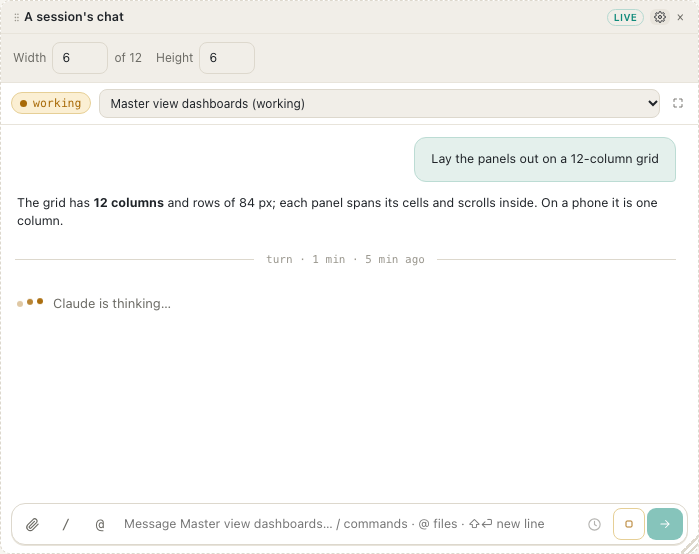
- A session's chat: one session live, with its permission, question and plan cards and a prompt box.
- Master chat: the master chat itself, the same conversations and box as in the main window.
- Idea box: files an idea or a bug report into a project's inbox.
- My list: your open to-do entries, grouped by project, with a tick to mark one done.
- Monitors: every project's monitors, alerting and failing first, each with its last value; a click opens it on its project's page (Monitors).
- Comments: the comments of every session you can see, the thread that moved last first. For me (what is assigned to you, names you or answers yours) is its first list, then Unread, Open and All; the panel keeps the one you pick. An unread thread has a dot, and each row says its session, its project, why it is yours and the last words written. A click opens the session at the comment; + on one assigned to you puts it on My list. Reading a thread anywhere takes its dot off here too (comments).
Click a session, an item or a project and it opens in cterm's main window, which comes forward where the browser allows; the master view itself stays as it is. Opening a session there marks its answer read everywhere, and the cterm button at the right of the head opens the main window if it is closed.
Narrow it to one project
The Project selector in the head switches the whole dashboard between All projects and one of yours. Every panel follows it unless you gave the panel a project of its own. Under All, the A project now panel asks which project to show.
Edit a dashboard
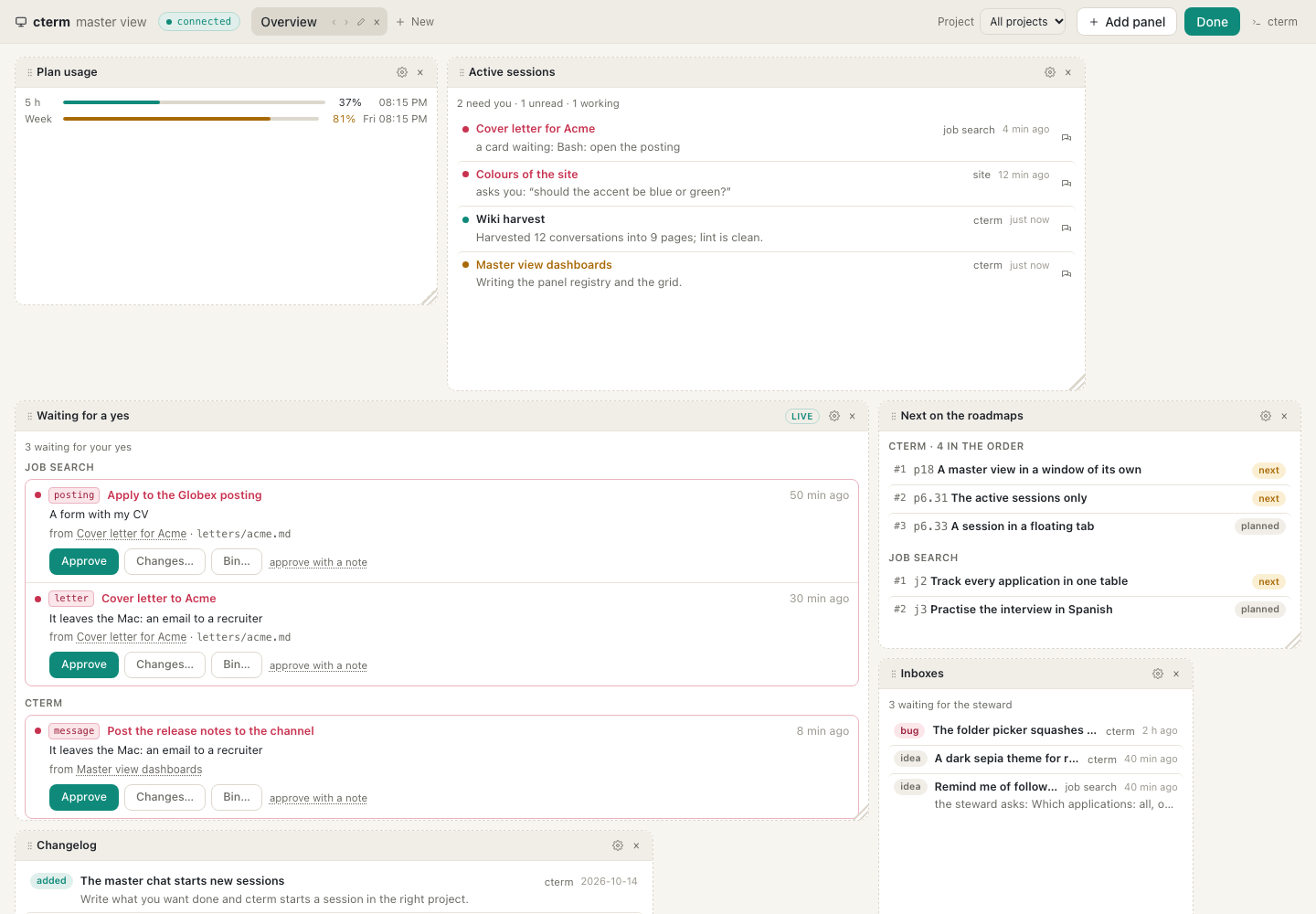
Press Edit in the head. While editing:
- Add panel opens the catalogue, each kind with a line on what it shows; the ones you can act on are marked live. A panel that needs a project or a session opens its settings right away.
- Drag a panel by its head onto another to move it, and drag its bottom-right corner to resize it in whole cells. A panel has a least width; the outline shows the size it will keep while you drag.
- The gear on a panel opens its settings: Project (Follow the dashboard, Every project or one project),
Rows for the list panels, and Width and Height, applied when you leave the field or press
Enter(Escputs the value back). A value too small is raised and the field says so. - The × on a panel removes it.
- The dashboard's tab gets buttons to move it left or right, rename it and remove it; New in the head makes another dashboard.
Press Done to stop editing. Changes are saved to your account as you make them, so every window and every device shows the same dashboards. If a save is refused, a bar says why with Try again and Drop my changes.
master-shot.mjsKeep a session's chat in view
Add A session's chat and pick a session in it. Once the dashboard has a chat panel, each row of Active sessions gets a chat icon that shows that session in it. Its answers arrive live, its permission and question cards can be answered there, and the prompt box sends to it. The expand button opens the session in the main window. Another account's session, which only an admin can see, is shown read-only.
master-shot.mjsWrite from the master chat
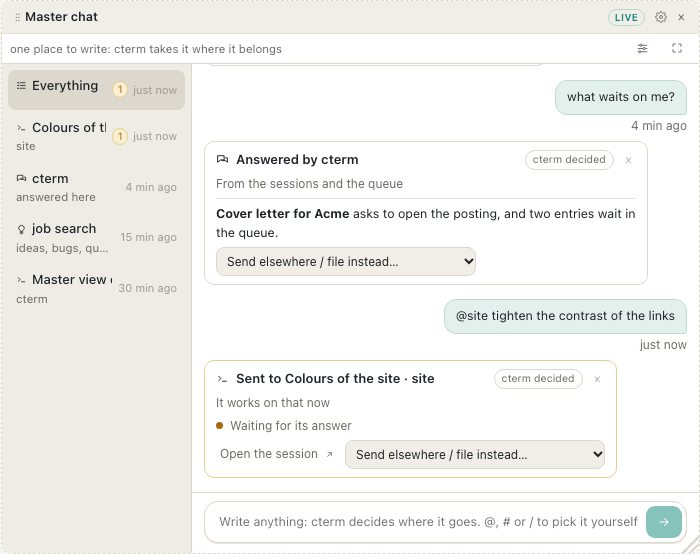
Add Master chat to write from the second screen. It is the same chat as the one M opens in the main window:
the conversations on the left, the cards with their buttons, the box with the microphone, and @, # and / to
pick where a message goes. It has no settings: the chat is your account's, so it follows no project, whatever the
Project selector says. When the panel is narrow (four columns), the conversations fold into a select above the
messages, as on a phone.
The panel stays out of the way of the rest of the dashboard: it does not take the keyboard when the window opens,
and Esc never closes it. Click its box to write. The expand button in its bar opens the chat in the main window.
While a dashboard with this panel is on screen, the chat counts as read: the chat button's count goes down on every
device, and an answer that comes then is not pushed to your phone, since you are looking at it.
master-shot.mjsOn a phone
On a phone the master view opens in the same tab instead of a new window, and the grid becomes one column, each panel at full width. Under Edit, panels move with up and down buttons instead of dragging. A click on a session opens it in place.
master-shot.mjsHow it works
- A page of its own.
/masteris served by the same daemon as the app, with no sidebar and no open session.?d=<id>in the address names the dashboard, so each window keeps its own across a reload. - Its own connection. The window opens its own socket and lives on what every connection of your account already
gets: sessions, projects, queues, usage and settings. It asks for a roadmap or a changelog only for the projects its
panels show, and attaches only the sessions its chat panels hold. The master chat comes with every connection, so
its panel asks for nothing more; while it shows, the window tells the daemon, as the main window does on
/chat. - Dashboards in the store. A dashboard is a named grid of 12 columns; a panel is a kind, a size in cells and a few settings. The whole set is saved to your account's preferences in the daemon's store a moment after the last change, and each window merges a second window's edits over its own, so neither is lost. Up to 20 dashboards of 40 panels each.
- Opening things in the app. A click posts the session's or project's address to cterm's main window in the same browser, which opens it as if you had used Back or Forward; if no window answers, one opens.
The master view and the master chat
The master view watches and lets you answer; the master chat is where you write. The chat, opened
with M or the sidebar head's chat button inside the main window, takes a message and decides where it goes: to the
session already on it, into a new session, into an inbox, or answered itself. The master view has no dispatcher of
its own: its Master chat panel is that same chat, sending through the same daemon. A session's chat panel talks
to one session you picked, and the idea box files straight into the project you choose. So you can keep the second
screen for watching and write in the main window, or put the master chat on the second screen with the rest.
Scenarios
A morning on two screens
Pau starts the day with three task sessions running in two projects. The master view sits on the left monitor. While he reads a pull request in the main window, a row in Active sessions turns to "needs you": a permission card in one of the projects. He clicks it, the main window jumps to that session, he allows the command and goes back to his review.
A dashboard for one client
Marta works for two clients. She presses New, names the dashboard after one client, sets Project to that client's project, and adds A project now, Waiting for a yes and Next on the roadmaps. Switching tabs in the head now flips between her two clients' views.
Related
- The master chat: the place to write a message and let cterm route it.
- Sessions and the rich pane: the cards a chat panel shows and answers.
- The roadmap: the order behind Next on the roadmaps and the inbox behind Inboxes.
- The steward: who places the ideas the Inboxes panel lists.
- To-dos: the list behind the My list panel.
- Monitors: the checks behind the Monitors panel.
- Sessions: the comments behind the Comments panel.
- On your phone: the rest of cterm on a small screen.