
Getting started
cterm runs on your Mac as two small background services: a PTY host that owns the terminals, and a daemon that
serves the web app and listens to Claude Code's hooks. You install it once from its checkout, open it in a browser,
and from then on it starts with your Mac. This page takes you from a fresh checkout to your first session and the
handful of cterm commands you use day to day.
What it is for
cterm wraps the real, interactive Claude Code in a browser UI you can use from the Mac, another computer or your phone. Before any of that, three things must be true: the services are installed and running, Claude Code is logged in, and, before the app is reachable from anywhere but the Mac itself, a password is set. This page covers those, so the rest of the documentation can assume them.
How to use it
What you need
- A Mac with Node 24.
- Claude Code installed (the
claudecommand, usually in~/.local/bin) and a Claude login on this Mac. - For the optional extras: the Xcode command line tools (
xcode-select --install) for reading text from scanned pages, and the tools named on their own pages for voice input and Codex or Gemini sessions.
Install
From the cterm checkout:
npm install
npm run build
npx cterm setup
npm run build builds the web app and the daemon. cterm setup (also npm run setup, which builds first) then:
- Writes two LaunchAgents,
com.cterm.ptyhost(the PTY host) andcom.cterm.daemon(the daemon), with the paths of this Mac filled in. - Loads them, waits until both answer, and prints the address.
- Links
~/.local/bin/cterm, so thectermcommand works from any folder.
Both agents start at login, restart if they stop, and survive a reboot. Running cterm setup again later is safe:
a PTY host that is already running keeps its sessions. The app listens on 127.0.0.1:7433 (--port changes it);
Claude Code's hooks go to a second port, 7434, which only the Mac itself can reach.
Open the app
cterm openThis opens http://127.0.0.1:7433/ in your default browser. The left side is the sidebar: your Claude profiles at
the top (for example Personal and Work, separate Claude logins on the same Mac), the New session button, a folder
picker, and your projects and sessions below. At the foot, the account line shows which Claude login the selected
profile uses; if it says "not logged in", Log in opens Claude's own login flow in a terminal pane.
Start your first session
- In the folder picker under New session, choose the folder you want Claude to work in.
- Press New session, or
Nanywhere outside a text field. - The session opens in the main area. Type your request in the box at the bottom and press Send.
Claude's answers stream in as text, with a card for each tool call. When Claude asks for permission, asks a question
or proposes a plan, a card lets you answer it in place; the raw terminal is a keystroke away (Cmd+J). Claude names
the session after its first exchange, and it shows in the sidebar under the folder's project. An admin also gets a
Shell button beside New session for a plain login shell in the same folder.
Set a password before exposing it
Out of the box cterm has no login: anyone who can reach port 7433 can open sessions and type into them. That is fine for a browser on the same Mac and nothing else, and the yellow banner at the top of the app says so. Before you open it from your phone or another computer, through a tunnel or any proxy, set a password:
cterm auth set-passwordIt asks twice without echoing. From then on a browser is sent to a sign-in page, and a device that signs in stays signed in for 90 days of use. Five wrong passwords from one address in 15 minutes lock it out for a while. Changing the password signs every device out. The running daemon picks the change up without a restart.
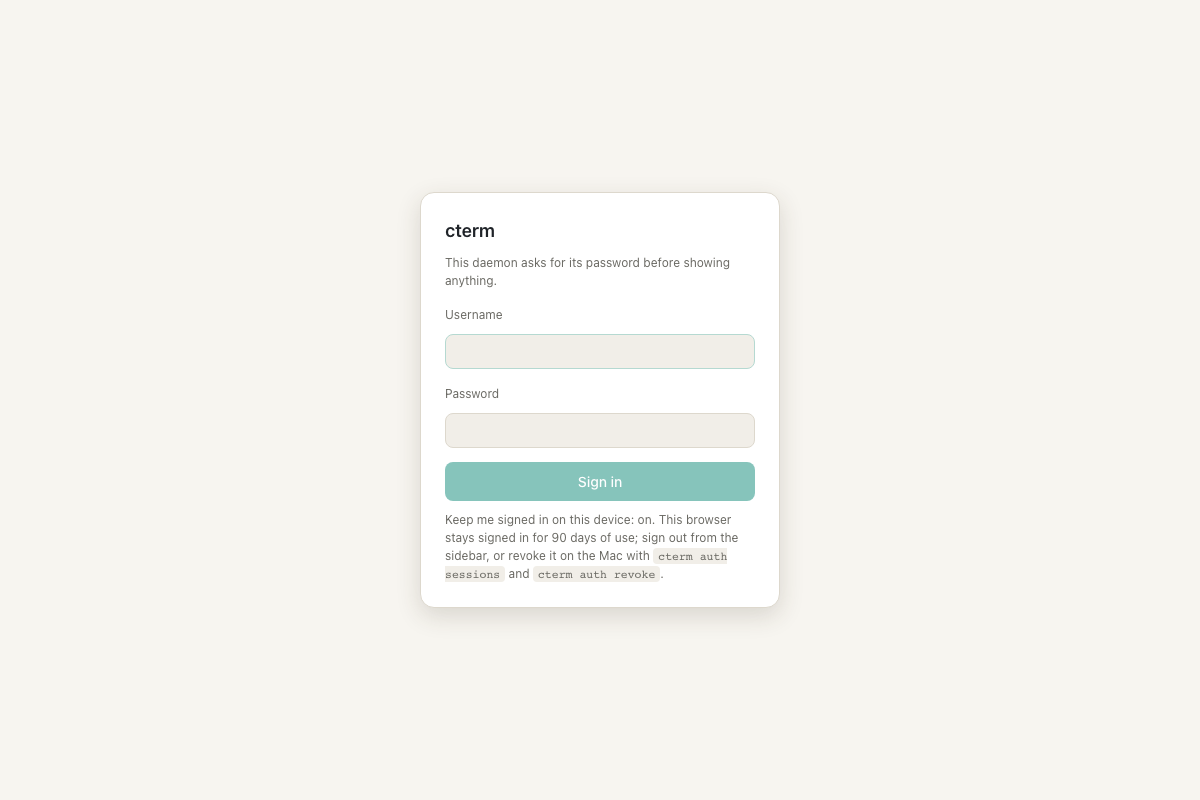
login-test.mjsA few more commands you may want now:
cterm auth status: whether a password is set, the trusted devices, and what the daemon enforces.cterm auth sessionsandcterm auth revoke <id>(or--all): list devices and sign one out.cterm user add <name>: an account for someone else, with Claude sessions in their own folders and no shell.
Reaching cterm from outside your home network is a separate step through your own server; see Remote access.
The cterm command, day to day
| Command | What it does |
|---|---|
cterm open | Opens the app in the browser. |
cterm status | Shows both services, the daemon's health (version, sessions, ports, state folder), the login state and the age of the last backup. |
cterm logs | Shows the daemon's and the PTY host's logs; cterm logs -f follows them. |
cterm restart | Restarts the daemon only. Running sessions stay on the PTY host and are reattached. |
cterm restart --all | Restarts the PTY host too. It lists the live sessions and asks first; they end, and can be resumed. It works from a cterm shell or session too: see below. |
cterm stop / cterm start | Unloads and loads the daemon. Sessions keep running on the host meanwhile. cterm stop --all stops the host too. |
cterm uninstall | Stops and removes every cterm agent and the cterm link. Your state in ~/.cterm is kept. |
cterm runner setup <server> <token> | Links this machine to an account on another cterm, so that account's sessions run here, on this machine's Claude login; cterm runner status, stop, start and remove manage the link. See Your own machine. |
Each also runs as npm run <command> from the checkout (npm run logs -- -f).
Update cterm
- Bring the checkout up to date (for example with
git pull), and runnpm installwhen the dependencies changed. - Run
npm run build. - Run
cterm restart. A change to the web app alone needs no restart: the daemon serves the new files from disk, and a reload of the page picks them up. - Use
cterm restart --allonly when the PTY host itself changed. It ends every live session, possibly the one you are working in, so say so to yourself first.
Typed inside cterm. cterm restart --all, cterm stop --all and a cterm setup that reloads the PTY host may be
typed in a cterm shell or session, the only terminal there is on a phone. That terminal is one of the sessions the
host ends, and the command knows it: the list it asks about marks it "this terminal", and once you confirm, a helper
of its own, detached from the terminal, does the stopping and starting. The terminal shows the helper's lines until
it closes with the rest; the whole output stays in ~/.cterm/logs/host-handoff.log. When the restart is done the
host and the daemon are running again, and --resume brings back the session you typed it in along with the others.
If the helper cannot be started, the command stops before ending anything and asks you to use a terminal outside
cterm (Terminal or iTerm on the Mac, or an ssh login). cterm uninstall always refuses inside cterm.
Should the host be left unloaded anyway (a stop cut in the middle), the daemon notices: after three minutes with no host and no stop of cterm's own under way, it loads the host's agent again and says so in its log.
Every session, shell and terminal on the Mac holds a PTY, and macOS allows a fixed number of them (511 on most Macs). An admin sees the count at all times at the foot of the sidebar, under the plan usage: "120 of 511 PTYs open, 391 left". It follows each session or shell that starts or ends within a few seconds, so you can tell whether a batch of sessions or a test run still fits. The line turns amber past 85% of the limit and red when none is left; its tooltip gives the share and how many cterm's PTY host holds. Accounts that are not admins never see it.
Past 85% an admin also sees a banner with the count and how many cterm's PTY host holds. cterm status prints the
count too (ptys:). cterm restart --all gives back the host's, at the cost of ending every live session; they can
be resumed. When none is left, a session or shell that cannot start says so in words.
When the page and the daemon come from different builds, the app shows a banner: reload the page when the page is
older, restart cterm when the page is newer. Check cterm status afterwards: a new daemon process and the web app
present.
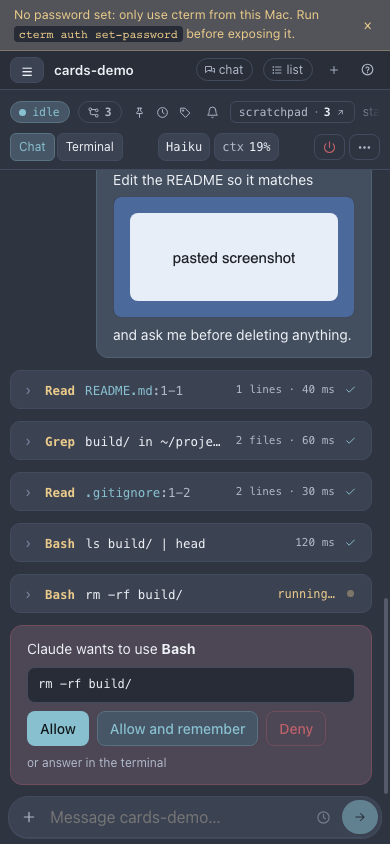
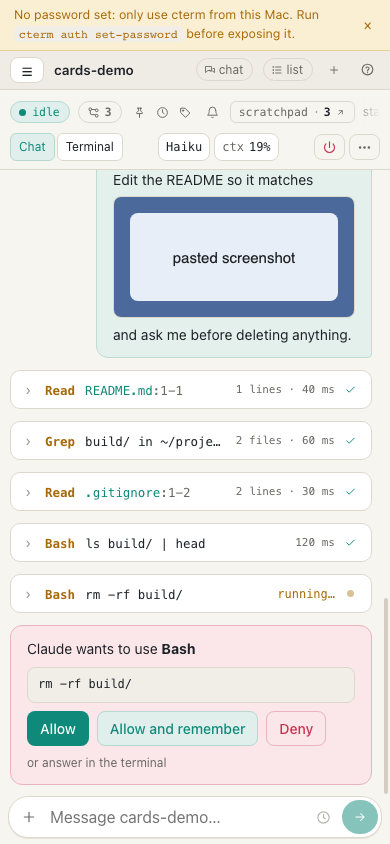
ui-shots.mjsHow it works
- Two processes. The PTY host (
ptyhost.ts) owns every terminal and listens on~/.cterm/ptyhost.sock. The daemon is its client: it serves the app, the API and the WebSocket, and receives Claude Code's hooks. Because the terminals live in the host,cterm restartreplaces the daemon without ending a session. - Real Claude Code. Each session is the interactive
claudein a terminal, started with cterm's hooks and status line added. Everything the rich pane shows comes from those hooks, the status line, Claude's transcripts and its session registry; cterm makes no API call of its own and takes no API key. - State lives in
~/.cterm/: the storecterm.db(accounts, devices, projects, sessions),config.json, the logs inlogs/, and one Claude config folder per extra profile inprofiles/. Claude's own files under~/.claude/are only read. - Backups of that state run every night at 03:00 into
~/cterm-backups;cterm backupmakes one now.
Scenarios
A first evening with cterm
Pau clones the repo, runs the three install commands and cterm open. The sidebar shows his Personal profile
already logged in, since Claude Code was set up on this Mac. He picks his side project's folder, presses N, and
asks Claude to explain the codebase. The answer streams in with Read and Grep cards he can expand.
Getting ready to use it from the phone
Before setting up the tunnel, Marta runs cterm auth set-password. The no-password banner goes away, and each
browser, the Mac's and later her phone's, asks for the password once and then remembers the device for 90 days of
use.
After pulling a new version
You pull the latest cterm, run npm run build and cterm restart. The three sessions you had running are still
there when the page reconnects, each with its history. cterm status shows the new daemon with its sessions
reattached.
Related
- Welcome: what cterm is, page by page.
- Sessions and the rich pane: everything about the session you just started.
- Accounts and projects: accounts for other people, profiles and projects.
- Remote access: reaching cterm from outside, safely, once the password is set.
- On your phone: installing cterm on the home screen and using it on a small screen.
- Your own machine: installing cterm on your machine to run an account's sessions there.