
Sessions and the rich pane
A session in cterm is a real, interactive claude running on your Mac. The sidebar lists your sessions by profile
and project, and the main area shows the open one as a conversation: your prompts, Claude's answers, a card for
every tool it uses and a card for every permission, question or plan that waits on you. The terminal behind it is
always one keystroke away.
What it is for
Claude Code's terminal is exact but hard to read on a phone and hard to follow across several sessions. The rich pane shows the same session in a form you can scan: what you asked, what Claude said, which files it touched and what it waits for. You answer with a click, see which sessions need you, and come back to any of them from the list. Everything the pane shows comes from Claude Code itself, so the terminal and the pane tell the same story.
How to use it
Start a session
- Pick a profile at the top of the sidebar (for example Personal or Work). Each profile is its own Claude login.
- Choose the folder in the picker under the buttons. Optionally type a name; leave it empty and Claude titles the session after your first prompt.
- Pick a model (default model uses the login's default) and a permission mode, then press New session.
Ndoes the same in the current folder when you are not typing anywhere.
Shell next to it opens a plain login shell in the same folder; see The terminal and the prompt box.
Read the session list
Sessions sit under their project, each with a dot and a word for its state:
- working: Claude is in a turn.
- needs you: a permission, a question or a plan is waiting. The row and its project carry a red count.
- idle: the turn is over and Claude waits for your next prompt.
- starting, and ended sessions under Resumable with how long ago they ran.
Pinned sessions come first. After them the list holds still while sessions work: one that needs you goes to the top, and every other live one keeps its place, the newest started first, whether it is working or idle. Projects are ordered by their newest session's start, so a busy project does not keep jumping above a quiet one; starting a session moves its project up once. The projects of a product sit together under the product's head, a fold of its own whose grid button opens the product page. For later sessions fold under a head of their own. So do the roadmap items whose task sessions have nothing left to do: Done shows only their count until you click it, then one line per item that opens on its sessions. It opens by itself while you search the list or when the session you have open is in it. Previous in lists the folder's past conversations, and Other Claude sessions on this Mac shows ones started in other terminals, read only.
A session that ran subagents keeps a quiet agents mark with how many it ran in all, once none runs, ended sessions
and previous conversations included; while agents run, the row shows the coloured badge of the ones running now
instead. Search the list for agents to find them.
Switch the list head from Projects to Active for one flat list: sessions that need you, unread answers, the open one and the working ones, each with its project and last line. A task session that ended after its branch was merged is left out even if you never opened it: what it did is on the roadmap and in the changelog. With two or more unread answers listed, Mark all read above the list clears them on all your devices.
Press A anywhere outside a text field and the terminal, or click the expand button in the list head beside
Projects | Active, to open the same list large, over whatever you are looking at. It has the same rows in the
same order, each with more to read: an unread answer's first lines, what a working session is doing now, the
project and how long ago. A session waiting on you shows the card the master chat has for it, with its buttons:
Allow or Deny a tool, pick an option or write your own answer, Approve or Revise a plan, or give a
queue entry its verdict. The answer goes to the session from there, the session counts as read on all your
devices, and the row says what you chose while the list stays open for the next one. A session that needs you
before its card has reached the chat says so, with Open the session. Click a session's name to open it; A
again, Esc or a click beside the list closes it. On a phone the list fills the screen.
To find a session, click the magnifier in the list head or press /. The field matches names, roadmap items,
tags, models, status words and what the session is doing; chips narrow it to needs you, working, idle,
ended, merged or shared. Cmd/Ctrl+K opens a jump list that searches the same words from anywhere.
Work in the rich pane
Type in the prompt box and press Enter. Claude's answer streams in as markdown, code highlighted. Each tool call is a card with its own view: a Read shows numbered lines, an Edit the diff, a Bash the command and its output, and agents, skills, to-do lists, searches and artifacts each have theirs. Click a card to open it; a file path in Claude's text opens the file. A thin line closes each turn with its duration, cost and context use.
The account menu, behind the avatar in the account foot, picks tool calls Shown, Grouped or Hidden; under the first, the head's Tools button hides them for one session.
Follow Claude's shell commands
A command Claude runs shows in every tool view. With tool calls hidden, the line under the chat says what runs
and for how long, such as Claude is running Build the web app · 42 s, where "Claude is working…" would
stand. Click it to open the command's card in place. Its output arrives when the command ends, because Claude
Code passes none of it on while it runs; Watch it in the terminal shows it live.
Claude can send a command to the background (a test run, a long scan), or Claude Code moves one there when it passes its timeout. Its card then stays running in every view until the command ends. It shows the newest lines of the output file, refreshed every few seconds, and Open the whole file opens the rest in the viewer. When the command ends, the card says completed or failed with the exit code. A command Claude stops says stopped, and one still running when the session ends says so. With tool calls hidden, each background command keeps a line of its own in the chat until it ends.
While a background command runs, a shells chip sits in the head beside the agents and watches chips. Its list gives each command, how long it has run and its latest output line, and a row jumps to the card. The Index marks them running in background among the tool calls.
Answer what Claude asks
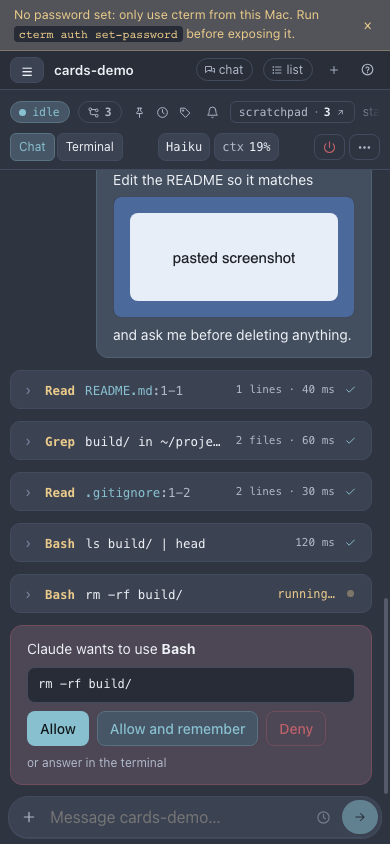
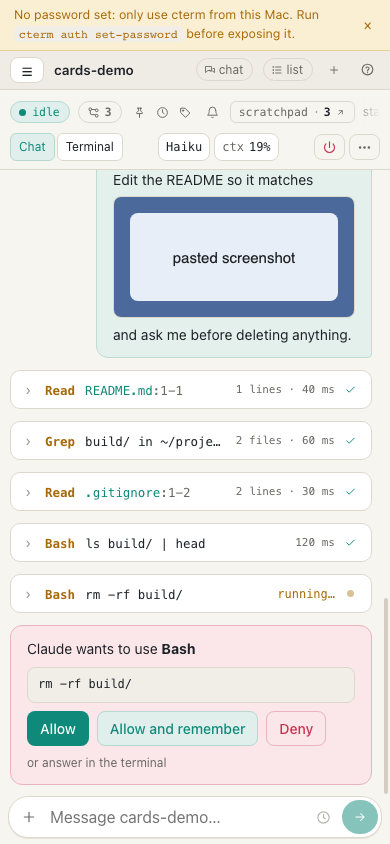
When Claude wants to run something you have not allowed, a card says what and offers Allow, Allow and remember and Deny. A question from Claude shows its options, an Other… field for your own answer, Submit and Chat about this. Each option's title sits on a line of its own above its description; on a narrow card (a phone, the dock, the master view's chat) the question also goes below its header chip. A plan offers Approve, Approve and auto-accept edits and Revise with your feedback. While anything waits, a Claude needs you bar above the prompt box scrolls to it. You can always answer in the terminal instead; whichever side answers first wins.
A question or plan still open when cterm restarts stays answerable from its card: cterm finds it again on Claude's screen and types your answer as before, and the session still says it needs you. When cterm cannot find it there within a few seconds, or the terminal shows another tab of the question, the card says answer this in the terminal with the reason and offers no Submit, and the terminal opens; once the dialog shows again, the buttons come back. A permission card open across the restart is answered in the terminal: Claude's request went with the daemon that held it.
Use the head
The bar over the session holds its name (double-click it to rename), the status pill and its folder. On the right are chips from Claude Code's status line:
- The model chip shows the model and effort level. Click it to switch either; the session restarts on the new choice between turns and carries on with the same conversation. A task session that cterm moved to its executing model after a usage limit carries a fallback tag on the chip; its tooltip says which model's limit was reached.
- The context chip (
ctx 31%) shows how much of the context window is used. Click it to compact or clear; see The terminal and the prompt box. - The session's cost, and lines added and removed.
Other chips appear when they apply: a pulsing agents chip while subagents run (once they all ended, a quiet one
with how many the session ran, which opens the Index on its Agents tab; an agent Claude resumes with a message
counts as running again until it reports, its card showing each run and keeping the earlier report folded), a worktree chip for a task
session in its own git worktree (it reads conflicts when merging the branch into main would conflict, the files in
its tooltip), a commits chip such as 4 commits · PR #42 (a dot while something is not
pushed), the session's tags, and a scratchpad link. The chip lists the commits that are really on a branch: a
commit reworded with --amend replaces the old one, and a commit whose hash the command did not print is found in
git by when it was made. A commit links to GitHub only once a remote branch holds it.
The head's buttons open panels beside the pane: Files, Roadmap, Artifacts, Brief, Index (the session's tool calls, agents and files as lists), Memory, History, Send to a tab, and for admins Share and Setup. Close is the power button. The Index also holds the session's Comments (below).
A path in Claude's answer is a link when the file is there: a click opens the files drawer on it, its small icon the
viewer. A bare name, such as report.csv written without its folder, is looked for in the project first and then
among the files the session's tool calls named, its shell commands included, the newest first; so a CSV a script
wrote to ~/Downloads is linked even when the answer names it alone. A folder in a code span, written with a final /
or one the session's commands named, opens the drawer on that folder.
The Index's Files tab lists every file of the session once: what you attached or mentioned under Shared by
you, then what the session read, searched, edited, wrote or named. A shell command counts too: the file a >
redirect, a heredoc or tee writes is written, a path it otherwise names is named, and its row's chat icon
lands on that command's card. A path only named shows once it is on disk, and a failed command counts nothing.
Browse files
Files opens a drawer over the Project folder, the session's Scratchpad, the Uploads you attached and, for admins, Home read only. A click previews a file: highlighted text, images, PDFs, CSV files as tables, Excel workbooks sheet by sheet, and Export for documents. Upload and New folder work on the selected folder; changes show as Claude makes them.
An .xlsx opens as its sheets, read in your browser: one tab per sheet along the foot, each sheet a table you sort by its header, search and filter column by column, the way a CSV is. Dates, percentages, TRUE and FALSE and a formula's last result show as the spreadsheet shows them; the table is read-only, and past 5,000 rows it shows the first ones and says so. Export turns the workbook into a web page or a PDF, one table per sheet under its name. A workbook protected by a password, a damaged one, one over 20 MB or an old .xls stays a download, and the preview says why.
A JSON file (also .jsonc and .webmanifest) opens Pretty: parsed and laid out again, two spaces a level, so a
file written on one line reads like the others. Raw beside it in the preview's head shows the file as it is, with
its own line numbers; Ask about this cites line numbers only in Raw, since Pretty's lines are not the file's. A
file with comments or trailing commas, such as a tsconfig.json or a .vscode settings file, still opens Pretty
(the comments are left out of the pretty text). A file that does not parse, an empty one or one over the preview's
2 MB opens Raw with the switch off and a line saying why, the parser's words and line included. A file:line link
in the chat opens a JSON file Raw, so the line it marks is the file's own; Pretty is a click away.
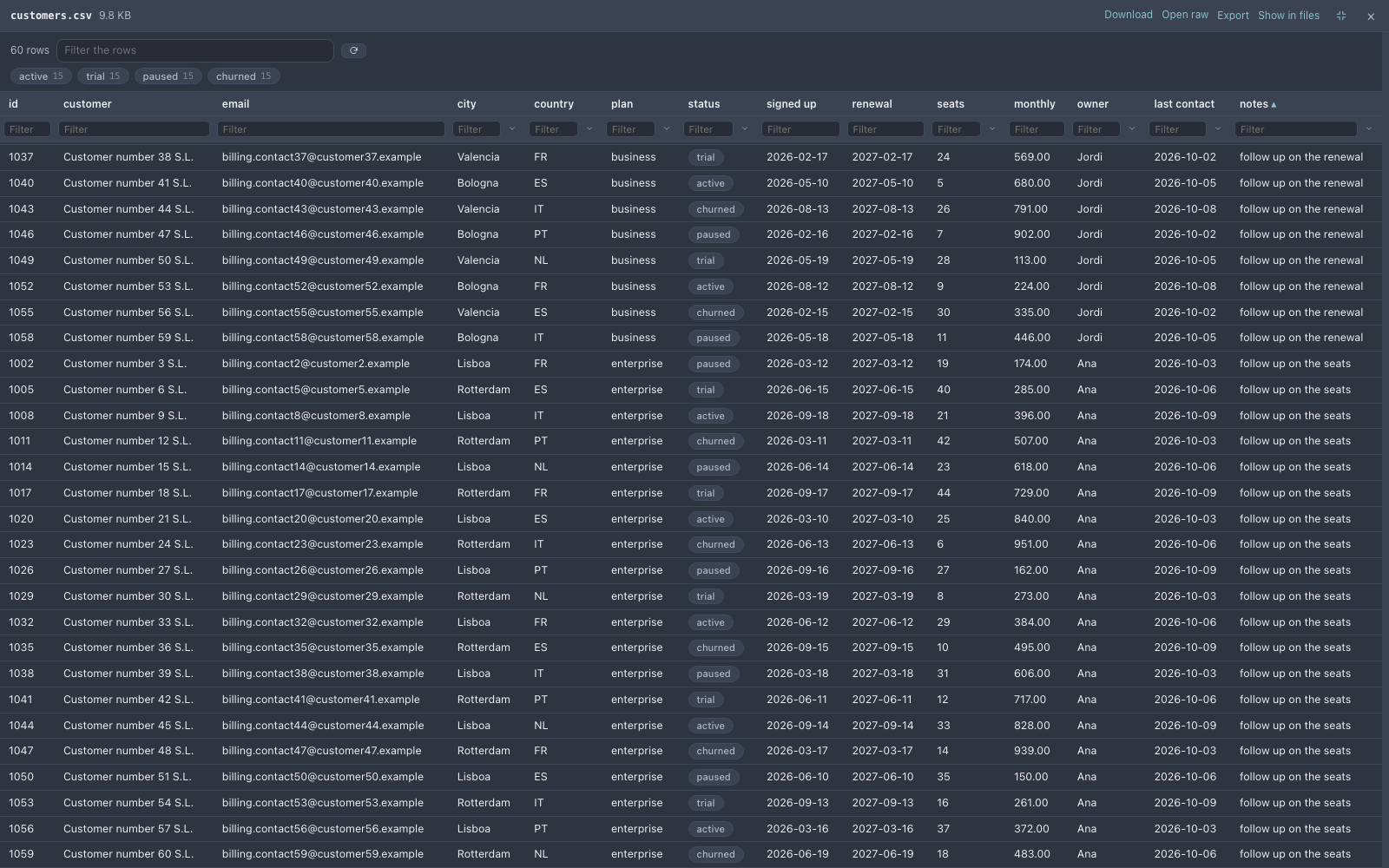
Expand in the preview's head, or a file link's icon in the chat, opens the file large over the page in the viewer. A wide table (a CSV, a TSV, a workbook's sheet) or code with long lines makes the viewer wider than its usual 1120 px, up to the window less a small margin, so on a large screen you read it without scrolling sideways. A markdown file does the same for a wide table or a code block with long lines (its code keeps its lines in the viewer, and the prose wraps at the width the file gets), and a picture wider than the box gets its natural width, unless the box's height would shrink it anyway. Short prose, a narrow table, a small picture, a PDF or a web page keep the usual width. The width holds while the file stays open: a filter, a sort or scrolling the rows never makes it jump, and a smaller window keeps the viewer inside it. A workbook's wider sheet picked from its tabs widens it the same way, and going back to a narrower sheet keeps the width. The drawer's own preview keeps its width, and on a phone the viewer fills the screen as before.
To read with every pixel the screen has, the full-screen button beside the viewer's × gives it the whole browser window, on a desktop and on a phone alike: no margin, no rounded corners, and the table, code, page, PDF or picture filling all of it. The same button, now a shrink icon, brings back the box at the width it had. The browser remembers the choice, so the next file opens the way you left the last one. Esc still closes the viewer at full screen.
viewer-width-shot.mjsMark, organise and get told
The row's menu (the ⋯ on a row, or a right-click) holds Pin, For later, Tags…, folders, New
thread (a side conversation listed under this one), Send to a tab, the notification choice (All, Only
when it needs me, Muted), Copy link and Remove, which takes the session off the list only.
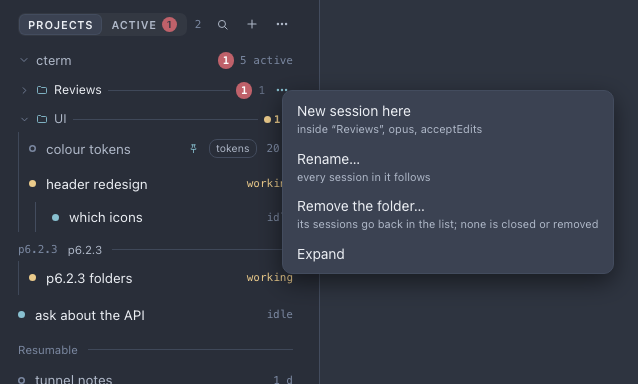
A folder groups sessions of one project under a head of its own, first in the project and folded or open as you
leave it. Put a session in one from its row's menu, or drag the row onto the folder's head; drag it anywhere else in
the project to take it out. The head's menu (its ⋯, or a right-click) holds New session here, which starts a
Claude session on the project's defaults already inside the folder and opens it (a folded folder opens for it),
Rename… and Remove the folder…, which puts its sessions back in the project's list as they are.
folders-shot.mjsComment on a session
A comment is a note beside a session, about the whole conversation or about a passage of it: a review, a question, a to-do. It is kept by cterm next to the session and is never typed into it, unless you hand it to Claude.
- On a passage: select text in the chat and press Comment in the buttons that float by the selection
(beside Ask about this and New thread), or
Cmd+Shift+M(Ctrl+Shift+Moff a Mac). A small box opens right under the passage, which stays marked while you write, and says where it is ("the reply in turn 2"); write your comment and press Comment, orCmd/Ctrl+Enter.Escor Cancel drops it. On a phone, and for a passage of the brief or a file, the passage goes to the top of the Comments tab instead, to write under it. - On the whole conversation: open Index in the head, then Comments, and write in the box at the top. The box is one line until you click into it; then it grows and shows who it is assigned to and Comment.
- Name someone by typing
@: the list offers the session's owner, the project's members, claude and codex. Arrow keys pick, Enter or Tab completes. - Assign it the same way, as in Google Docs: each person comes twice in the
@list, to mention and Assign to them. Pick Assign to marta and the comment is hers: the bar under the box says → marta, and its × takes the assignment back, leaving the name in the text. Naming@claudeor@codexassigns it to them when nobody is assigned yet.
A comment you started and did not send stays with its session: its words, who it is assigned to and its passage are there again when you come back from another session, another tab of the index or a reload. Sending it clears them.
The session's head says how many open comments it has, on passages and on the whole conversation alike, in a chip beside the agents chip; click it to open the Comments tab. Once every comment is resolved the chip stays, grey.
A passage with an open comment is highlighted where it is in the chat, and a small mark with the count sits on the
part it was taken from: the prompt, Claude's reply or the tool card. Rest the mouse on a highlighted passage, or tap
it, and its comment opens in a popover over the chat with its replies, Reply… and the check that resolves it;
Show in the list opens it in the Comments tab. A click on the mark opens the same popover and keeps it open
until you click elsewhere or press Esc.
Each comment in the tab shows its author's initials (Claude's and Codex's in marks of their own), when it was
written, who it is assigned to, the passage and its replies. Click the passage to see it in the chat: the chat
scrolls to it and flashes it. When the passage is no longer in its turn (Claude's answer was replaced, a card
changed), the comment is marked Outdated, as GitHub marks a comment on lines that changed, its mark sits dashed
on the turn's prompt, and its passage still takes you to that turn. The list comes in the order of the conversation:
the comments on the whole conversation first, then each passage where it is in the chat. Recent activity, the
select beside the lists, puts the comment that moved last (written, replied to, edited, resolved) at the top instead;
this browser keeps the choice. The check in its head
resolves it: it moves to the Resolved list, where the same check, filled, reopens it. Send to Claude or
Start in Codex, when the comment waits for you, is its one highlighted button. The ⋯ beside the check holds the
rarer actions: New thread, Assign to…, Copy link (the address that opens the session at this comment), and
on your own Edit and Delete, which takes its replies with it (a reply has its own pencil and ×). A delete asks first, in
cterm's own confirmation, as every action that removes something does. At the foot of an open comment, Reply… is
always there to write in; Cmd/Ctrl+Enter or Reply sends it.
What an assignment does:
- Claude: the comment and its passage go into the session as a prompt, held until Claude is ready like any prompt you send, and the comment then links to the turn it became. A project member, who cannot type into your session, leaves it waiting: you see Send to Claude on it.
- Codex (admins): a Codex session of the project starts as a thread of this one, with the comment and its passage as its first prompt; the comment links to it. One assigned by someone else waits for your Start in Codex.
- A person: they are told, like everyone a comment names.
New thread in a comment's ⋯ opens a thread of the session with the comment and its passage waiting in its prompt box,
nothing sent, and the comment links to that thread.
The answer comes back to the comment. When the turn a comment sent to Claude became ends, Claude's answer lands under the comment as a reply signed Claude: its first lines, and answered in turn 3, which shows the whole turn in the chat. A turn that failed or was stopped says so instead. A comment's thread does the same when its first turn ends, Codex's included, with Open the thread. The newest answer offers Resolve, so a comment settled by it takes one click, and the comment's author is told "Claude answered your comment". Nobody edits or deletes such a reply. If cterm restarts while that turn runs, that one answer does not come back; the comment still links to the turn.
Anyone who sees the session may comment on it: you, the members of a shared project (who cannot drive your session) and admins. A person a comment names, assigns or replies to gets a toast in the app with Open, which shows the session at the comment, and a notification on the devices where push is on.
The comments that are yours
The Comments tab has four lists, each with its count: Open, For me, Unread and Resolved.
- For me holds the open comments assigned to you, the ones that name you (in the comment or a reply), and your own comments somebody replied to.
- Unread holds every thread with something new from somebody else since you last read it: a comment, a reply, an edit, a resolve, Claude's answer. Such a thread has a dot by its author, and the head's comments chip has one too. A thread counts as read once its card has been on screen for a moment, or when you open it from its notification, and that is the same on all your devices: read it on the phone and the dot is gone on the Mac. Your own reply reads it too. A thread you read while Unread shows it stays in the list until you pick another one.
To give a comment to somebody else, click its → name chip, or Assign to… in its ⋯ menu, and pick a person,
Claude, Codex or Unassign. Anyone who can comment may do it; the new assignee is told, and a comment given
to Claude goes into the session the way a new one would. A comment assigned to you can go on your to-do list:
Add to My list in its ⋯ menu makes an entry with its words that names the comment, in the session's project when
the project is yours; the menu then says On My list.
To see the comments of every session at once, add the Comments panel to the master view.
A comment and a reply read like the chat: write markdown and it shows as Claude's answers do, bold, lists,
inline code, code blocks, links (http and https only), and a file.ts:42 that opens the file at that line when it
exists. A single line break stays a line break, as in a prompt, and the @names of the project are still picked out.
What you wrote is kept as you wrote it: Claude gets those words as they are.
To say you saw a comment without writing a reply, react to it: the smile under a comment or a reply offers 👍 (agreed, or seen), 👀 (looking at it) and ✅ (done). A reaction shows as a chip with its count; rest the mouse on it to see who gave it, and click a chip to add or take back your own. Each person gives each emoji once. The comment's author is told of the first reaction only, not of every one after it.
A screenshot belongs with its comment: paste an image into the comment or reply box, drop one on it, or pick one with the paperclip under it. It is uploaded at once and shows under the text, a × taking it off; Comment waits until it is up. Images only, up to 10 MB each and six on a comment. In the comment it is a thumbnail that opens large over the page. The image is kept by cterm with the comment, and goes when the comment is deleted or the session is removed. A comment for Claude or Codex names its images' files, so they can read them.
Close and resume
Close ends Claude's process; the session stays in the list and can be resumed. Opening an ended session only shows it. To carry on, press Resume in its head, double-click its row, or simply send a prompt from its box: cterm resumes the conversation and types your prompt once Claude is ready.
When cterm's PTY host restarts (cterm restart --all, cterm stop --all, a crash, or the Mac restarting), every
live session ends at once. cterm notes which of your sessions were running and which were in the middle of a turn,
and a banner at the top offers them back: resume all starts them again three at a time, and the arrow unfolds
the list, where you can untick the ones to leave ended. Nothing is typed into them. A session that was mid-turn
is marked, and its pane says the last turn did not finish, so you can see where it stopped before going on. A task
session whose branch is already merged, or whose worktree is gone, is not offered, nor one you closed or Claude quit
by itself just before the host went. The × leaves them ended; each
stays resumable from its row. cterm restart --all --resume does the same once the host is back, and cterm session
resume <id or name> resumes a single session.
cterm restart --all may be typed in a cterm shell or session too, a phone's only terminal: that session ends with
the others, the command says so before it asks, and a helper detached from it finishes the restart, so the host
always comes back. With --resume, the session it was typed in is resumed with the rest.
Send a prompt later
Write a prompt, then press the clock in the prompt box. Send later offers In 10 min, In 30 min, In 1 hour, In 3 hours, Tomorrow 9:00, a number of minutes or a date and time. The prompt waits in a bar above the box with Edit, Send now and Cancel. cterm sends it at that time with the tab closed too, resuming the session first if it has ended, and tells you if it could not.
How it works
Each Claude session runs in a pseudo-terminal owned by cterm's PTY host, a small process that outlives daemon
restarts. The daemon starts Claude Code with hooks and a status line pointing back at itself on a loopback-only
port, so Claude Code reports every prompt, chunk of text, tool call, permission request and turn end. The daemon
keeps these as events per session and the browser draws them as the pane's items (richItems.ts).
The status follows the same hooks, and Claude Code's session registry tells cterm about interruptions and about
sessions started elsewhere. The head's chips come from the status line. A permission card answers through the
hook holding Claude's request; question and plan cards are answered by keystrokes into the dialog on Claude's
screen. A background command's end comes as a task notification Claude Code sends the session, which closes its
card; its output file sits in the session's tasks folder, read like any file of the drawer by whoever may see the
session. After a restart the pane is rebuilt from the transcript, background commands included, and a turn that
ended while the daemon was restarting is read there as ended, so the session shows idle rather than working. cterm's list, marks, comments and scheduled prompts
live in its store (~/.cterm/cterm.db); Claude's files under ~/.claude are only read. A session's comments reach
every page that has it open as they change, and go when the session is removed from the list.
Scenarios
Three sessions, one of them stuck
You start a refactor, a test fix and a docs pass in three projects, then go to lunch. Back at your desk, two sessions are idle with an unread mark and one is red. You open it, read the command in the permission card, press Allow, and read the other two answers in the Active view while it goes on.
Picking up last week's conversation
On Monday you want to continue Thursday's conversation. You press /, type part of its name, open it to reread
where it ended and type the next instruction in its box. cterm resumes the session and sends the prompt once
Claude is ready.
A review from a member
You share a project with a colleague. They read your session's plan, select the step they doubt and comment "@you is this safe on the old schema?", assigned to Claude. You get a toast, open the session at the comment, agree, and press Send to Claude: the question goes in as your next prompt and the comment links to the turn that answers it. You resolve it once that turn is done.
A deploy after the cache clears
Claude says the deploy can go in half an hour. You write "Deploy the site now and check the home page", pick In 30 min under the clock and close the laptop. cterm sends it on time.
ui-shots.mjsRelated
- The terminal and the prompt box: typing, attachments, queued prompts, Stop, compact, clear and retry.
- The brief: a short running account of a session beside it.
- Codex and Gemini sessions: other providers' CLIs in the same list.
- Task sessions: sessions started on a roadmap item, with worktrees and merges.
- Accounts and projects: profiles, projects and who sees which sessions.
- cterm on a phone: the same sessions laid out for a small screen.
- Sharing a session: a link to watch or drive a session without a login; its page has the agents chip and the Index too, without Comments and opening no file.