
The project page
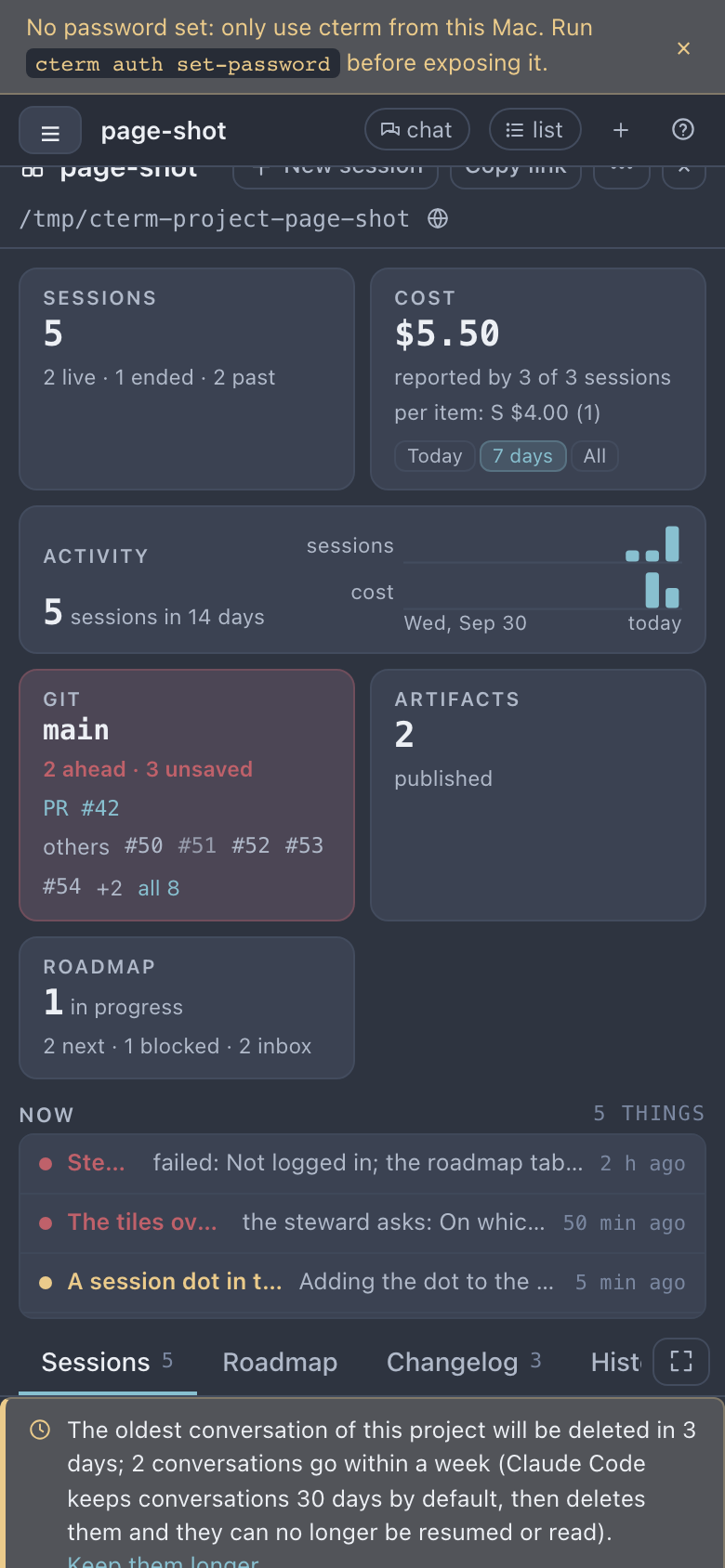
The project page shows one whole project in the main area: how much it has cost, what is going on in it right now, and a row of tabs for everything cterm keeps about it. You open it without opening a session, so it is the place to look in on a project, answer what waits for you there, and change how the project works.
What it is for
A session shows one conversation; a project usually has several at once, plus a roadmap, files and pull requests. The page puts that together:
- The tiles answer "how much": sessions, cost, activity, git, artifacts and the roadmap's counts.
- The Now strip answers "what needs me": sessions waiting on a card or with a question, the queue, pull requests in trouble, a session's branch that would conflict with main (with the files), the steward's failures, live sessions, unmerged worktrees and blocked items. On a computer it takes at most 40% of the window and scrolls inside past that, so the tabs stay in view however many lines it has.
- The tabs hold the rest, the Settings tab every setting of the project.
How to use it
Open the page
Click the grid button on a project's head in the sidebar, or choose Project page… in its ⋯ menu. The
address becomes /p/<id>, which Copy link copies. The head also has New session (for the owner, on the
project's defaults), the project's ⋯ menu and ×, back to the session you had open. An admin sees another
account's project read-only.
Read the tiles
- Cost sums what the sessions reported, for Today, 7 days or All. Under it, per item gives the mean cost of a done item at each complexity, "S $1.20 (4) · M $3.40 (6)", counted over the done items that have a size and a cost (sessions and steward jobs together, whatever the period), so you can tune the presets by what an S, an M and an L really take. Hover it for each size in words. The Sessions tab shows each session's cost on its row.
- Activity draws sessions and cost per day for the last 14 days.
- Git shows the branch, commits ahead, unsaved files and open pull requests; it turns red while unsaved files would block going back to a version, and a click opens History. Its "all" link lists every open pull request of the repository with its review, checks and the session that opened it.
Act on the Now strip and the queue
Each line opens what it names: the session, the item on the roadmap, or a tab. A red line needs you.
When a session prepares something for you to decide (a draft letter, a decision it will not take alone), it adds it to the project's queue, shown first in the strip with its title, why, the session and the file, which opens in a viewer so you can read it first. Then:
- Approve lets the session go on; approve with a note carries a line with it.
- Changes… asks for your words; the session reworks it and queues it again.
- Bin… asks for a reason; the session does not go on.
Your answer is typed into the session that asked, resumed if it had ended. Only the session's owner answers.
Move between the tabs
The tabs are Sessions, Roadmap, Changelog, History, Memory, Wiki, Artifacts, Files,
any pinned trackers, Routines, Workflows, Monitors and Settings. Roadmap and Changelog appear when the project has a roadmap,
Artifacts when its feature is on, Wiki when it has one, and Settings only for the owner and admins. With the tab row
focused, Left and Right step through the tabs and Home and End jump to the first and last. The button at the
end of the row gives the open tab the whole page, folding the tiles and the Now strip away; folded, it shows the
strip's count, red when something needs you.
- Sessions lists every session by item, by day or by status, searchable, each with a line of what it did and, for one that ran subagents, the agents mark with how many. When Claude Code is about to delete the oldest conversations, a warning says when, with Keep them longer… for an admin.
- Changelog is the readers' record of what was built, searchable, exportable to Word or PDF.
- History shows the project's versions: save one, undo a change, go back.
- Memory shows Claude's auto memory of this folder, read-only.
- Files browses the folder. A CSV or TSV preview offers Pin as a tab, which adds it as a tracker tab: a table to sort, filter and edit. A CSV separated by semicolons, as Excel writes one in a Spanish locale, opens with its columns too, and edits are saved with its own separator.
- Roadmap, Wiki, Navigator and Artifacts have pages of their own: roadmap, wiki, navigator, artifacts.
Set up a routine
A routine sends a prompt on a repeating schedule, into one of the project's Claude sessions or into a fresh session each run, or runs one of the project's workflows instead of sending a prompt. In the Routines tab, click New routine, then give it a name, the prompt it sends, the repeat (Every day, Weekdays (Mon to Fri), On days of the week or Every few hours), the time, the time zone and where to send it: a session, or a workflow under Run a workflow. Each routine then shows its rule, its next and last run, and for the owner Run now, Pause or Resume, Edit and Delete. An admin on someone else's project can only pause or delete one.
Set up a workflow
A workflow is a chain of steps drawn on a canvas in the Workflows tab: prompts into sessions, skills, subagents, scripts, an approval that waits in the queue and a notification, each step's result the next one's input. You run it with Run or from a routine, and the canvas shows where the run stands. Workflows explains them.
Watch something with a monitor
A monitor in the Monitors tab is a check cterm runs every few minutes, a script in the project folder or a question a model answers, with the condition that matters: a disk at 85% or more, an error in a log, a site that stops answering. Your phone is told when the condition starts to hold and once when it clears; the tab shows each monitor's state, last value and history. Monitors explains them.
Change the project's settings
The Settings tab lists its sections down the left; a click scrolls to one. Change what you need, then click Save at the bottom; Revert goes back to what is saved. The bar names the sections with unsaved changes, and leaving the tab or the page asks first. Sessions take the change at their next start.
- Members: the other accounts the project is shared with, each with when and by whom it was added and a Remove, and a field to add one by name (an admin picks from the accounts). A member sees the project and starts sessions of their own in it; Accounts, profiles and projects says what they may do. This acts at once, apart from Save.
- Part of a product: several projects that are one thing (the API, the web, the mobile app) share one roadmap as a product. Here a project joins one of its owner's products, makes a new one with itself as the anchor, or leaves the one it is in. A project whose roadmap has items is asked first whether to merge them into the product's roadmap, under one new item named after it; saying no keeps it out of the product. Accounts, profiles and projects says how. This acts at once, apart from Save.
- Name and defaults: the name, and the model and permission mode a new session starts on when nothing else picks one.
- Task sessions: Task sessions in a worktree of their own, Clean up after a merge, Start a session
on each bug, Merge a finished session by itself (never, a bug's session, or every task session), Work
through pull requests, Before a merge, a shell command (the project's tests) run in a task session's
worktree before cterm merges it, such as
npm test, and After a merge, a shell command run after a clean worktree merge, such asnpm run build. Task sessions explains them. - Features: Brief, Roadmap, Artifacts and Ideas. Switching one off hides its panel and stops its work; nothing it kept is deleted.
- Notifications: what A task session and Any other session tell you by default: all, needs (only when it needs you) or muted. Your own choice on a session, from its menu or the bell in its head, wins.
- Models & effort: what define sessions think on and task sessions run on, the steward's pick with the last exam of its prompts beside it (how many past jobs held on which model, the steward), Task sessions plan, an executor carries out, and the Presets by complexity (S, M, L) a task takes when its card picks nothing.
- Roadmap: whether the roadmap lives in the repo or is kept in cterm, outside it. A move happens at once. A product's member has the product's roadmap, which stays in cterm, so it offers no move. Check stale Todays after a merge has cterm run Still valid? by itself on the items whose Today a merge marked as possibly stale, one at a time and at most five a merge; off by default, since each check is a model run. The roadmap and ideas explains the mark.
- Wiki: the wiki folder, and Set up a wiki when the project has none.
- Rules for its sessions: text every Claude session of the project is told at its start and resume, after cterm's rules for every session. Nothing is written into the repo.
- Operations (admins only): move the project to another folder, and, while Herd serves it, https and its PHP version. These act at once.
How it works
The page is built from what the daemon already sends the browser: sessions, roadmap and inbox, steward jobs,
queue and artifacts. The cost comes from each session's status line, and pull requests come from GitHub through
gh when the project works through pull requests. With that switch off, the pull requests the sessions opened
are still read from GitHub one by one, so their state is GitHub's, but the repository's others are not listed.
One Save sends the whole form as a single update; the daemon checks you own the project or are an admin and
keeps it in its store, ~/.cterm/cterm.db, and every open page follows. Routines and queue entries live in the
same store. A routine's timer is checked at least once a minute, so a run missed while the Mac slept goes once on
waking, never piled up; a queue entry comes from a session running cterm queue add.
Scenarios
Monday morning on a client project
The Now strip has a red line, a session waiting on a permission, and a queue entry: a draft reply to the client. You open the file, click approve with a note, add "sign it from me", and the session goes on.
Making task sessions safe to run alone
Small bugs keep coming. In Settings you switch on worktrees, Start a session on each bug and Merge a finished session by itself for a bug's session, and click Save. The next bug the steward places gets its own session, and once its work is committed with a clean tree, cterm merges it.
A daily news round
In Routines you add a routine at 08:30 on weekdays that sends "Collect today's news about our sector into news/today.md" into a fresh session. At nine, on the phone, the page shows the session that ran.
project-page-shot.mjsRelated
- Accounts, profiles and projects: making projects and who may change them.
- The roadmap: the Roadmap tab and the inbox.
- Task sessions: worktrees, merges and pull requests.
- The steward: the jobs behind the Now strip's steward lines.
- The wiki, the navigator and Artifacts: three of the tabs in depth.
- Workflows: the Workflows tab, its canvas and its runs.
- Monitors: the Monitors tab, its checks, their conditions and their history.
- cterm on a phone: the page and the queue on a small screen.