
To-dos
My list is a to-do list of your own, across all your projects. Dump whatever comes to mind, sort it into projects when you like, and send an entry to its project's roadmap as an idea once it is ready. Nobody else sees it, and nothing on it is built by Claude until you send it on. Beside the entries, Notes keep what is not a to-do: a longer thought in several paragraphs, or a voice memo recorded on the Mac or the phone, kept as audio with its transcript.
What it is for
An idea filed with the idea button (the light bulb in the sidebar's head) goes straight into a project's inbox, where the steward reads it and places it on the roadmap. Many thoughts are not ready for that: they have no project yet, they are personal, or they are half an idea. My list is where they wait:
- One list, every project. Entries are grouped by project, with the unsorted ones first, so you see everything in one place.
- Private and manual. The list belongs to your account. No steward reads it, and no session acts on it.
- A path to the roadmap. When an entry is ready, Send as idea files it into its project's inbox, and from there it follows the usual path: idea, steward, roadmap item, task session.
How to use it
Open the list
- Click the list button in the sidebar's head; its badge counts the open entries still unsorted.
- Press
Lanywhere outside the terminal and text fields. - On a phone, use the list button in the top bar.
The list opens alone in the main area at /todo, so a bookmark or a phone's home screen can open it directly. Its
× goes back to the session you had open before. Opening a session, a project page or the chat closes it.
Add entries
Type in the box at the top (its placeholder reads "Dump what comes to mind: one thought or many…"), then:
- Add (or
Enter) adds the text as one entry, into the project shown on the chip under the text.Shift+Enterstarts a new line. The focus stays in the box, ready for the next entry. - Split and sort sends the text to a model, which splits it into entries in your words and suggests a project for each from your projects and their roadmaps. When the chip shows a project, every entry starts in that project instead. The drafts come back for review: untick one to drop it, edit its text, change its project, then click Add N entries, or Discard. Nothing lands until you add it. A draft whose words name a date, a priority, a label or a section (see below) shows them as chips, and they are read from it when you add it, the same way the box reads them.
Put an entry into its project
There are three ways to put an entry straight into the project it is about.
The chip under the box. It names the project the next entry goes to:
- When you open the list from a session or a project page, it starts on that project.
- Otherwise it starts on the project you last added an entry to in this browser.
- It shows Unsorted only when neither applies, or when you chose it.
Click the chip and type a few letters of a name to find a project. Arrows move through the list and Enter picks;
the focus goes back to the box. The chip's × sets it back to Unsorted. The chip keeps its project after an
add, so several entries for one project need no new pick.
# in the text. Type # and the start of a project's name, such as #si for site. A list of matching projects
opens under the box: Enter or Tab picks the first, or use the arrows. The #si leaves the text and the chip shows
the project. Esc closes the list and leaves the text as typed. A whole name typed out, such as #notes, also
counts when you add. A name with spaces is written with dashes: #client-site. A # that names none of your
projects, such as #42, stays part of the entry.
The add line of a group. In By project, every group ends with + Add to and its name, Unsorted's included.
Click it, type, and press Enter: the entry lands in that group and the line stays open for the next one. Esc or
the line's × closes it.
Give an entry a date, a priority, labels or a section
Type them in the box with the entry, the way Todoist reads them, and each shows as a chip beside the project's while you type. At Add the words leave the entry's text and set the field:
| Type | It sets |
|---|---|
today, tomorrow, friday, next friday, next week, next month, in 3 days, in 2 weeks, oct 20, 20 october, 2026-11-02 | the due date (a weekday alone is the next one after today; "next friday" is the Friday of next week; a day and month already past this year is next year's). "on", "by" or "due" before it goes too. |
p1, p2, p3, p4 | the priority, p1 the highest and p4 none |
@errands | a label; several are fine |
/later | the section of the entry's project it goes into; /next-week names an existing "Next week" section |
Each chip has a ×: click it when the words were meant as text, such as p2 naming a roadmap item, and they stay
in the entry. A date, priority or section typed twice takes the last one. Typing @ offers the labels already on
your list. The same works in a group's add line and in the quick add.
Every open row has a calendar button that opens a small panel for the same things:
- Due: Today, Tomorrow, Next week, a date from the date field, or No date.
- Priority: P1 to P4.
- Labels: type one and press
Enter; each label's × takes it off. - Section: type a name and press
Enter, or pick one of the group's; No section takes the entry out.
Each change is saved at once. Esc or a click outside closes the panel.
A row then shows a P1, P2 or P3 chip and a ring of the same colour around its tick, its due date ("Today", "Tomorrow", a weekday this week, else the date) and its labels. A due date already past is in red, on an overdue row.
Sections, the order and labels
Sections. In By project, a group lists its entries in no section first, then each of its sections by name,
under a head with the count. A section exists while an entry is in it: put one into it with /name or from the
panel. Each section has its own add line, and its head's Rename renames it for every entry in it; its ×
removes the section after asking, its entries staying in the group. The All view has no section heads and shows
each entry's section as a /name chip.
The order. Within a group or section the higher priority comes first, then the order you set by hand; a new entry goes on top. To move an entry, drag the grip at the left of its row (with the mouse, or with a finger on a phone): a line shows where it will land. Drop it:
- higher or lower in its list, to reorder it;
- into another group, onto its name or among its entries, to move it to that project;
- into a section, onto its head or among its entries.
An entry dropped among entries of another priority takes theirs, since the list keeps the higher ones first. With
the keyboard, focus a grip and press ↑ or ↓. In All, a drag reorders the one list and keeps each entry's
project and section.
Labels. Once an entry has a label, a bar of labels sits above the list, each with its count of open entries. Click one, or a label on a row, to show only the entries carrying it; click it again or show all to see them all. While a label filters the list, a group's add line gives the new entry that label, so it stays in sight. The filter is kept in this browser.
Add from anywhere
Press Q in any view, outside the terminal and text fields, and a small box opens over the page with the project of
the open session or project page already chosen (else the last one used). It is the same box as the list's, so the
chip and # work there too. Enter adds the entry and closes the box, and a note at the top says where it went;
Esc or a click outside closes it with nothing added. On a phone, the + beside the list button in the top bar
opens it.
Keep entries tidy
Each entry is one row:
- Tick the box to mark it done. Done entries fold under a "N done" line at the foot of their group.
- Click the text to edit it in place;
Entersaves andEsccancels. - The project chip moves the entry to another of your projects, or back to Unsorted: click it and type to find one. A move this way leaves the section it had, which was its old project's.
- The calendar button opens the panel for its due date, priority, labels and section.
- × removes it.
By project and All at the top switch between the groups and one list across projects; the choice is kept in this browser.
Send an entry on as an idea
Send as idea appears on an open entry whose project takes ideas (its roadmap and ideas features are on and it has a roadmap). It files the entry into that project's inbox as an idea signed with your name. A line under the entry then says where the idea stands:
- waits in the inbox, with open the inbox and Undo, which takes it back out while it still waits;
- placed on an item, with a link that opens that item on the roadmap;
- the steward dropped it, or taken back out of the inbox when someone removed it there. In both cases you can send it again.
Use it on a phone
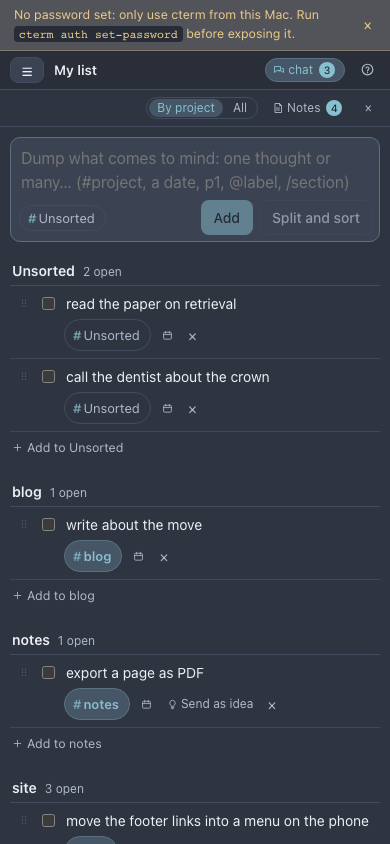
On a phone the list fits the screen without sideways scrolling: each row puts its chips (priority, due date,
labels) right under the text and its project chip and buttons under them, and the box sits on top with its chip,
Add and Split and sort on one line under the text and the chips it read on a line of their own. The grips
are larger, for a finger to drag. The # list, the add lines and the quick add work the same; the quick add opens
at the foot of the screen, and its # list opens above the text.
todo-shot.mjs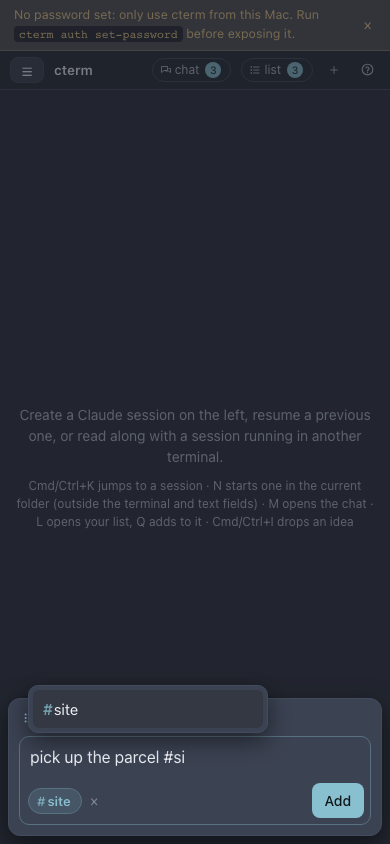
todo-shot.mjs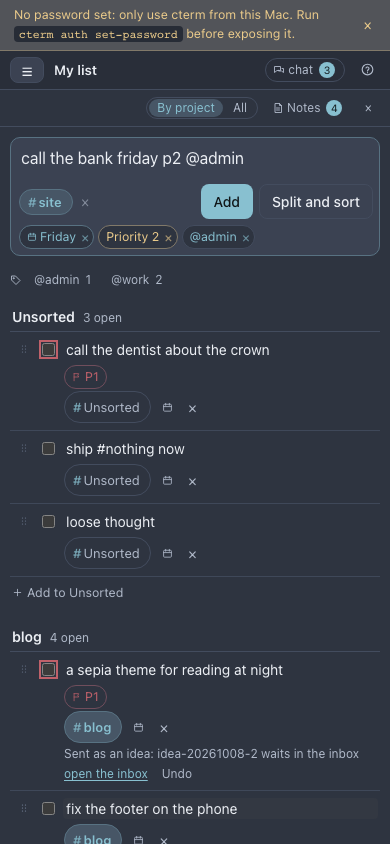
todo-shot.mjsKeep notes
The Notes section sits beside the entries on a wide screen and under them on a narrow one; the Notes button in the list's bar, with the count of your notes, scrolls to it. Notes are listed newest first, and each may belong to one of your projects, like an entry, or to none.
- A written note. Type in the Notes box: it takes several paragraphs, and the line breaks are kept. Pick a
project if you like, then click Save note or press
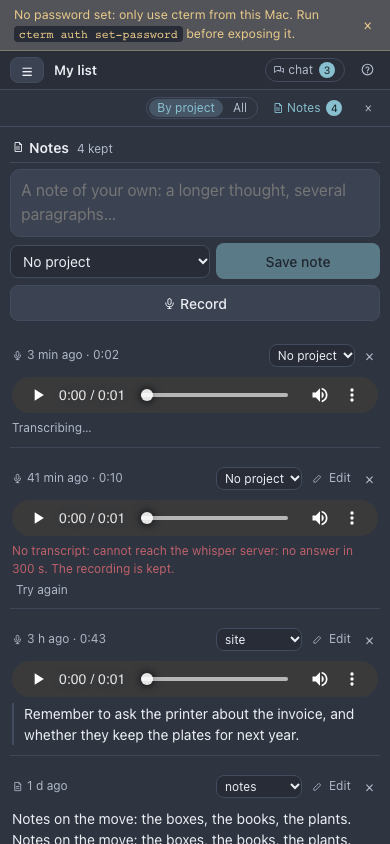
Cmd+Enter(Ctrl+Enter). A long note shows folded with Show all. Edit opens it in place; Save (orCmd+Enter) keeps the change and Cancel (orEsc) drops it. - A spoken note. Click Record beside Save note. The button turns into a red timer with Save and
Cancel: Save keeps the recording as a note, Cancel or
Escdrops it. A recording stops by itself after ten minutes. The note appears at once with a player and Transcribing… under it; a moment later the transcript replaces that line. Edit on a spoken note corrects its transcript. - When there is no transcript. If the whisper server cannot be reached, or none is set up, the note says why and keeps its recording, with Try again. You can also type the transcript yourself with Edit.
- × removes a note after asking; a spoken note's recording goes with it.
On a phone the Notes come after the entries, with the same box, Record and players.
todo-shot.mjsKeep it on the master view
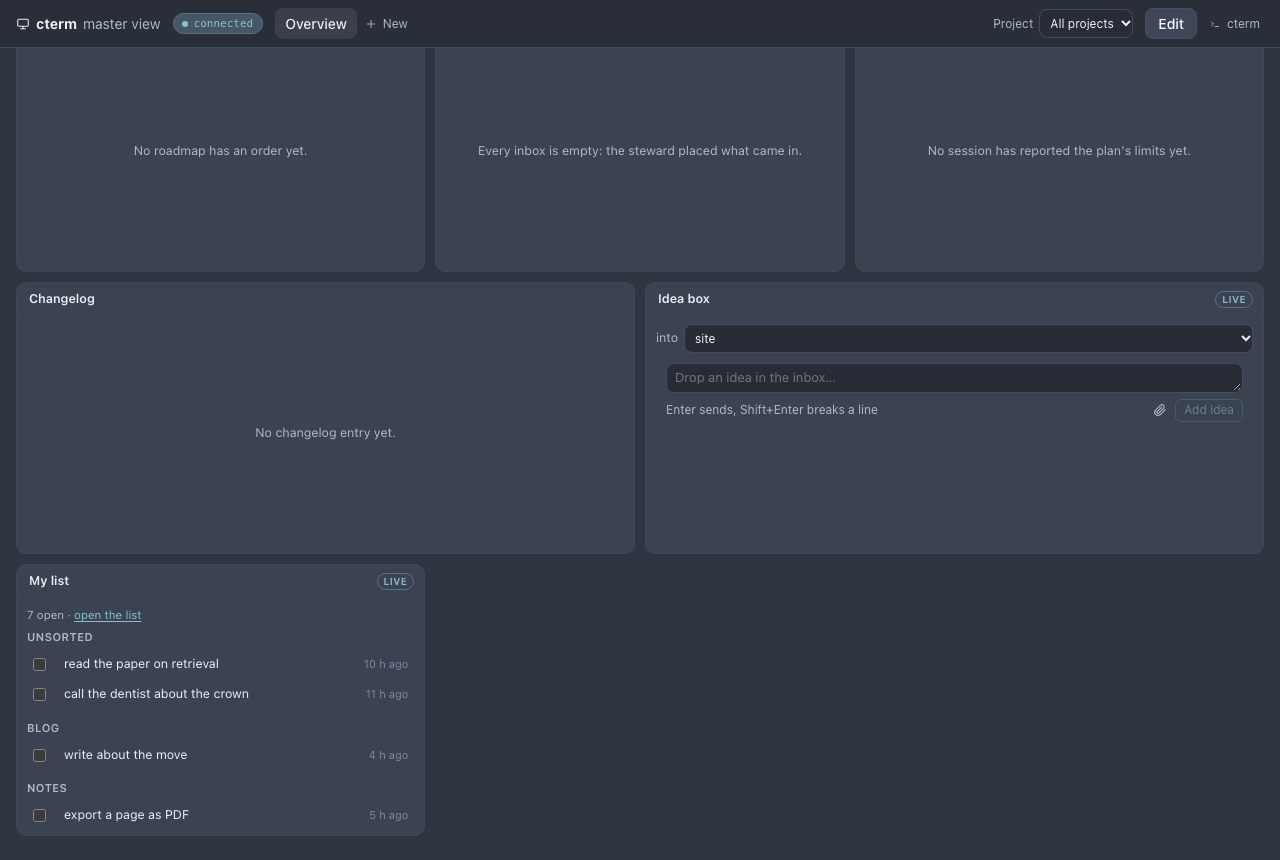
In the master view, add the My list panel from the catalogue. It shows your open entries in the same groups, follows the dashboard's project filter, and lets you tick an entry done. open the list opens the full list in the app's window.
todo-shot.mjsHow it works
The entries live in the daemon's store, ~/.cterm/cterm.db, one row each, tied to your account and optionally to
one of your own projects. Every change is sent whole to every open page of your account, so a tick on the phone
shows on the desktop at once. Another account's connections never receive it. An entry holds up to 2,000 characters,
an account up to 1,000 entries, and done entries are cleared after 90 days. If a project is removed, its entries
become unsorted.
Notes are kept the same way, one row each in the store, tied to your account. A written note holds up to 20,000
characters, an account up to 500 notes, of which 200 spoken ones. A spoken note's recording is the one recording
cterm keeps: the page sends it as 16 kHz mono WAV (25 MB at most), and the daemon stores it under
~/.cterm/notes/<your account>/, readable by this Mac's account only and played back only to you; another account
asking for it is told there is no such note. The daemon then sends it to the same whisper server as
voice input, one note at a time, and keeps the words as whisper heard them, without the model's
shaping. Removing a note removes its recording, removing your account removes them all, and cterm's backups include
them.
The project chip, #, the add lines and the quick add are the page's own: they send the same add as the box, and
no model reads the words. The last project used is kept in this browser only.
A due date, a priority, labels, a section and the order are stored with each entry. The page reads them from your
words by fixed rules, in this browser's calendar; no model reads them, and the model of Split and sort never
sees your list. A due date is a day, with no time. An entry holds up to 10 labels of one word each (letters, digits,
- and _, kept in lower case), and a section's name up to 60 characters. The order is a number per entry: a drop
puts the entry halfway between its new neighbours'.
Split and sort is the only model call: one claude -p on your Claude login, at most 8,000 characters in, counted
with the master chat's calls against the same hourly limit and using the chat's model settings.
Send as idea files the entry through the same door as the idea palette, so the steward triages it like any other idea, and Undo removes the inbox row the same way. After each triage the daemon updates the entry's line with what became of the idea.
Scenarios
A thought in the middle of a session
You are reviewing the site's contact form in a session when you remember the footer looks wrong on the phone. You
press Q, type "check the footer on the phone" and press Enter. The site chip was already chosen, so the entry
sits under site in My list, and you never left the session. Later, in the list, you type "call the printer #no",
press Enter to pick notes, and Enter again to add it there.
Clearing your head on Monday
You open the list with L and paste five lines from a notebook: two bugs on the site, a blog post idea, a call to
make and a library to try. Split and sort returns five entries, four with a project suggested. You leave the call
Unsorted, fix one project, and click Add 5 entries. The list now shows them by project.
From a stray thought to a task
Last week you noted "the contact form should remember the name" under the site project. Today it is clearly worth doing, so you click Send as idea. The line reads that it waits in the inbox. An hour later the steward places it, and the line changes to "placed on" with the item's id; you click it and the roadmap opens on the new item.
Planning the week
On Monday you type "renew the domain friday p1 @admin /ops #site" and press Enter: the entry lands in site's
"ops" section, due Friday, at the top of it in red-ringed P1. Two older entries in site matter this week too, so you
drag them into "ops" under it. On Thursday, a click on @admin in the label bar shows the three things to do as
admin across your projects; "renew the domain" says Tomorrow, and the one you set for last Monday is red.
A thought on the way home
Walking to the station, you open My list on the phone, tap Record and say what you want to remember about the printer's quote, then Save. The note shows with its player and Transcribing…; by the time you put the phone away the transcript is under it. At your desk you move the note to the site project and copy a line from it into a new entry.
Ticking things off away from the desk
On the train you open the list from your phone's home screen, tick off the stamps you bought, and move "read the paper on retrieval" from Unsorted into your notes project. At your desk, the master view's My list panel already shows both changes.
Related
- The roadmap: the inbox and items an entry becomes.
- The steward: how an idea is triaged and placed.
- The master view: the My list panel on a second monitor.
- The master chat: the other place to write across projects, which shares the model limit.
- cterm on a phone: using the list from a phone.
- Voice input: the whisper server that transcribes the spoken notes.