
Remote access
Out of the box cterm only answers on the Mac itself, at http://127.0.0.1:7433/. This page covers putting it behind a password, letting other people sign in with accounts of their own, and reaching it from anywhere through an https address of your own. You need this for a phone, a laptop away from home, or a share link someone opens elsewhere.
login-test.mjsWhat it is for
cterm is a terminal on your Mac. Anyone who reaches it can run Claude, and as an admin, shells, as your macOS user. So it has to stay closed to strangers while it's open to you from wherever you are. cterm does this without a cloud service or an account anywhere else:
- A password of cterm's own, with optional accounts for other people.
- A trusted device per browser you sign in from, which an admin can revoke from the settings view or the Mac.
- An SSH reverse tunnel that the Mac opens to a server you control. The server already runs Caddy and gives cterm an https name. Nothing listens on the Mac for the outside world.
How to use it
Set a password first
On the Mac, run:
cterm auth set-password    # asks twice, without echo; at least 8 characters
cterm auth status          # password set or not, accounts, trusted devices, what the daemon enforces
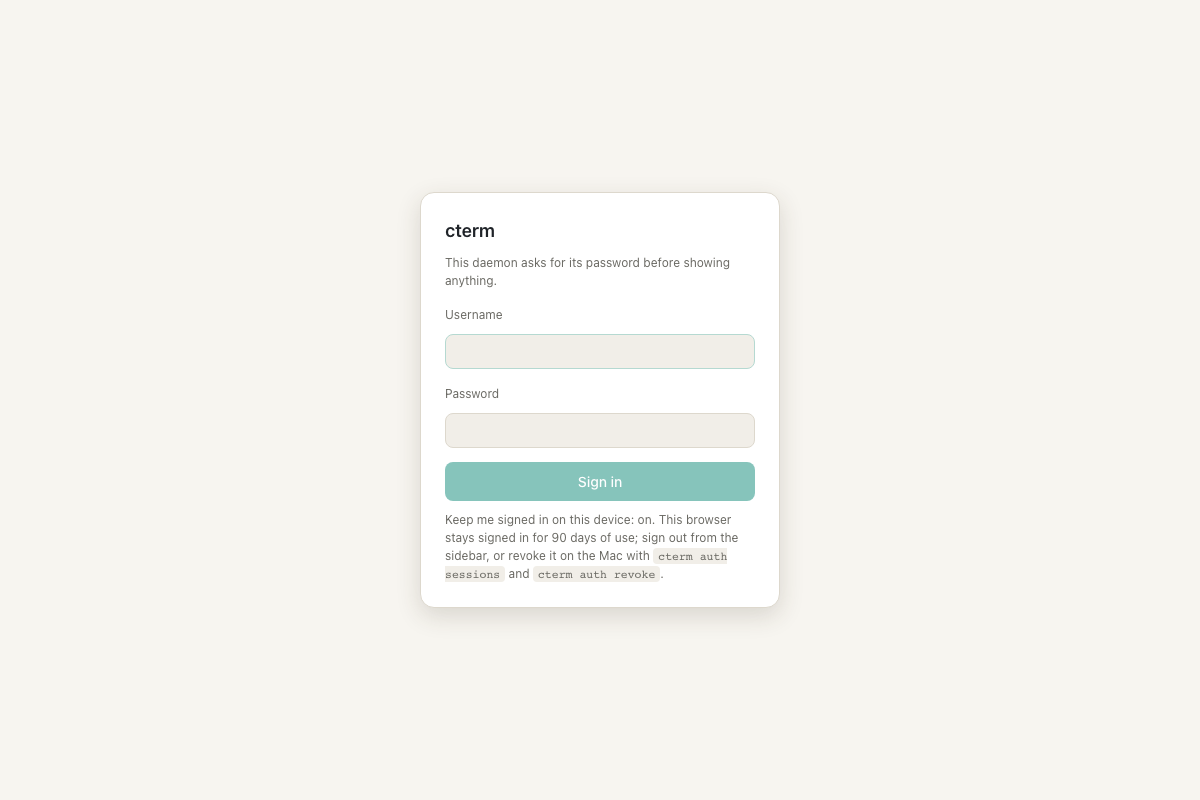
Until a password is set, the app shows a banner: "No password set: only use cterm from this Mac." Once it's set, every browser is sent to the sign-in page. The Username field is optional while only one account can sign in. Sign in once and that browser stays signed in for 90 days of use. Each visit restarts the 90 days.
Give other people accounts
An admin can do everything. A user runs Claude sessions in their own projects under their own folder (by default ~/cterm/<name>), with no shell and no settings but their own machines: a user can run their sessions on a machine of theirs instead (Your own machine).
cterm user add marta                     # asks for her password; --role admin for a second admin
cterm user grant marta ~/projects/thesis  # she may also work in this existing folder
cterm user list                          # role, password, devices, sessions, folder root
An admin can do the same without a terminal from the settings view's Accounts card: + account, and each row's ⋯ menu for the role, the root, the password, the devices and removing it. Accounts need the first admin's password to be set. A user who signs in sees only their own projects and sessions. Accounts and projects covers the rest.
login-test.mjsSee and revoke trusted devices
cterm auth sessions          # every signed-in browser: id, account, device, created, last seen
cterm auth revoke <id>       # sign one device out
cterm auth revoke --all      # sign every device out
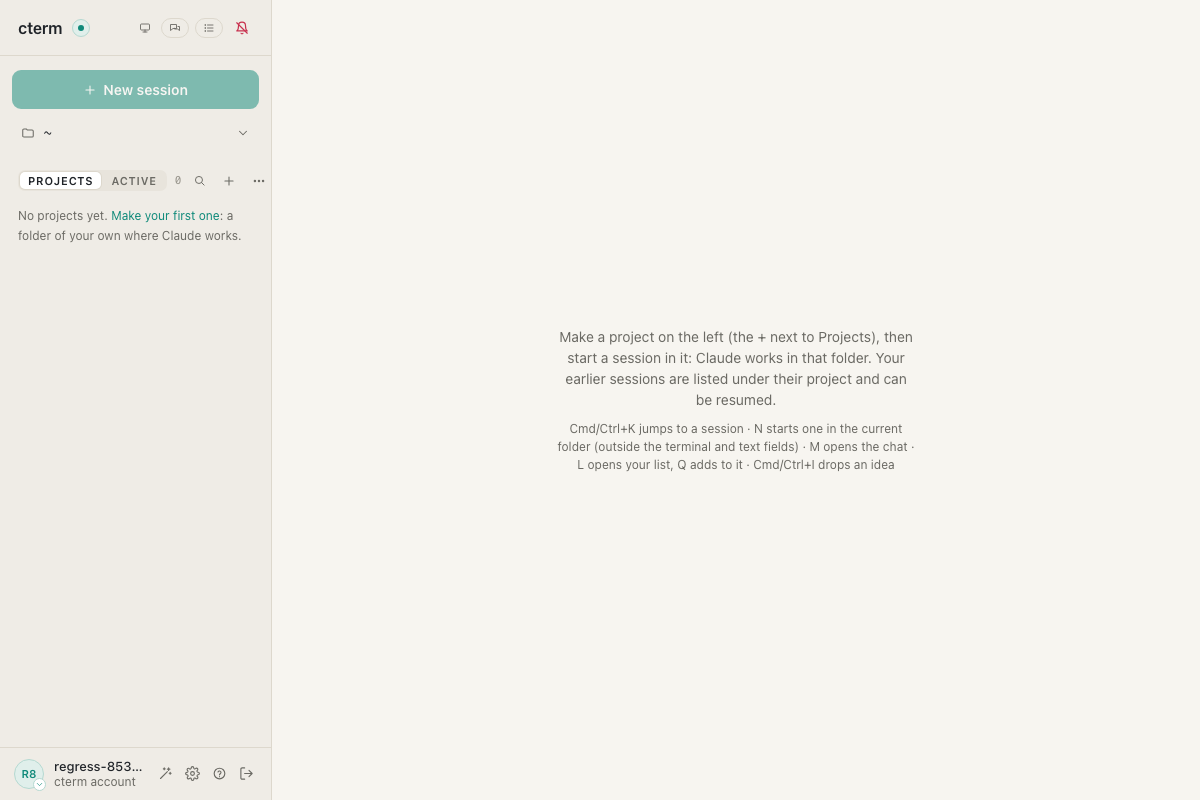
In the app, an admin sees each account's devices on its row of the Accounts card in the settings view, with when each was last seen, and signs one out with Revoke or all of them with Revoke all (on your own account, all but the browser you use). A device signed out there goes back to the login page at once.
The sign-out button in the sidebar's account foot signs out the browser you're using. Changing a password signs out every device of that account, and so does a revoke. Either one also drops that device's push subscriptions. For a script that needs to act as you, cterm auth issue --ttl 15m prints a cookie for a device that ends on its own (24 hours at most), so no password has to be stored in a file.
Open the tunnel
You need a server you can reach over SSH as root, already running Caddy on ports 80 and 443, and a DNS name pointing at it directly (no proxy in between). Then, on the Mac:
cterm tunnel setup cterm.example.com --server server.example.com
ssh root@server.example.com 'bash -s' < ~/.cterm/tunnel/server-setup.sh
cterm tunnel startsetuprefuses to run without a password. It makes a key used only for this tunnel, pins the server's host key and prints its fingerprint to compare, and saves the settings. It setspublicOrigintohttps://cterm.example.comand turns ontrustProxy. Finally it writes the script the server needs.- Read the script before you run it. It adds three things: a system user that can only forward the one port, an SSH setting for that user alone, and one Caddy site. Each change is validated before a reload, nothing is restarted, and a second run changes nothing.
startloads the tunnel as a background agent on the Mac and waits untilhttps://cterm.example.com/answers.
Later, cterm tunnel status shows the settings, the agent's state and whether the public address answers. cterm tunnel stop closes it until the next login, and cterm tunnel remove forgets it on the Mac and prints what to remove on the server.
Or open it through Cloudflare
With a domain on Cloudflare, there's no server to keep: a Cloudflare Tunnel dials out from the Mac, and Cloudflare serves the https name. Make the tunnel on Cloudflare's side first (Zero Trust, Networks, Tunnels, or its API), with a public hostname such as app.example.com going to http://127.0.0.1:7433, and copy its token into a file. Then, with cloudflared installed (brew install cloudflared):
cterm tunnel cloudflare setup app.example.com --token-file ~/Downloads/tunnel-tokensetuprefuses to run without a password. It keeps the token in~/.cterm/tunnel/cloudflared.token, readable by you alone; delete the file you gave it afterwards.- It adds
https://app.example.comto the Origin allow list and turns ontrustProxy. When nopublicOriginis set, the new name becomes it; otherwise the name is kept inotherOrigins, so the old address keeps working while you move.cterm config set publicOrigin https://app.example.commakes the move. - It starts
cloudflaredas a background agent and waits untilhttps://app.example.com/answers.
cterm tunnel cloudflare status, stop, start and remove work as they do for the SSH tunnel. Its log is ~/.cterm/logs/cloudflared.log.
Check the proxy settings
cterm config show
cterm config set publicOrigin https://cterm.example.com
cterm config set trustProxy true
cterm config set otherOrigins https://old.example.com keeps a second address allowed, the old one while you move to a new name. tunnel setup sets both, so you only need these for another kind of proxy. publicOrigin is the address browsers use, and share links are built on it. Turn trustProxy on only behind a proxy that sets the forwarded headers.
Show a landing page to visitors
cterm's own install at app.cterm.dev keeps this switch off: its public face is https://cterm.dev, a static site with
the landing page, a blog and these pages, built from site/ in the repository and served by Cloudflare, so it stays
up while the Mac sleeps. The switch below is for an install of your own that has no such site.
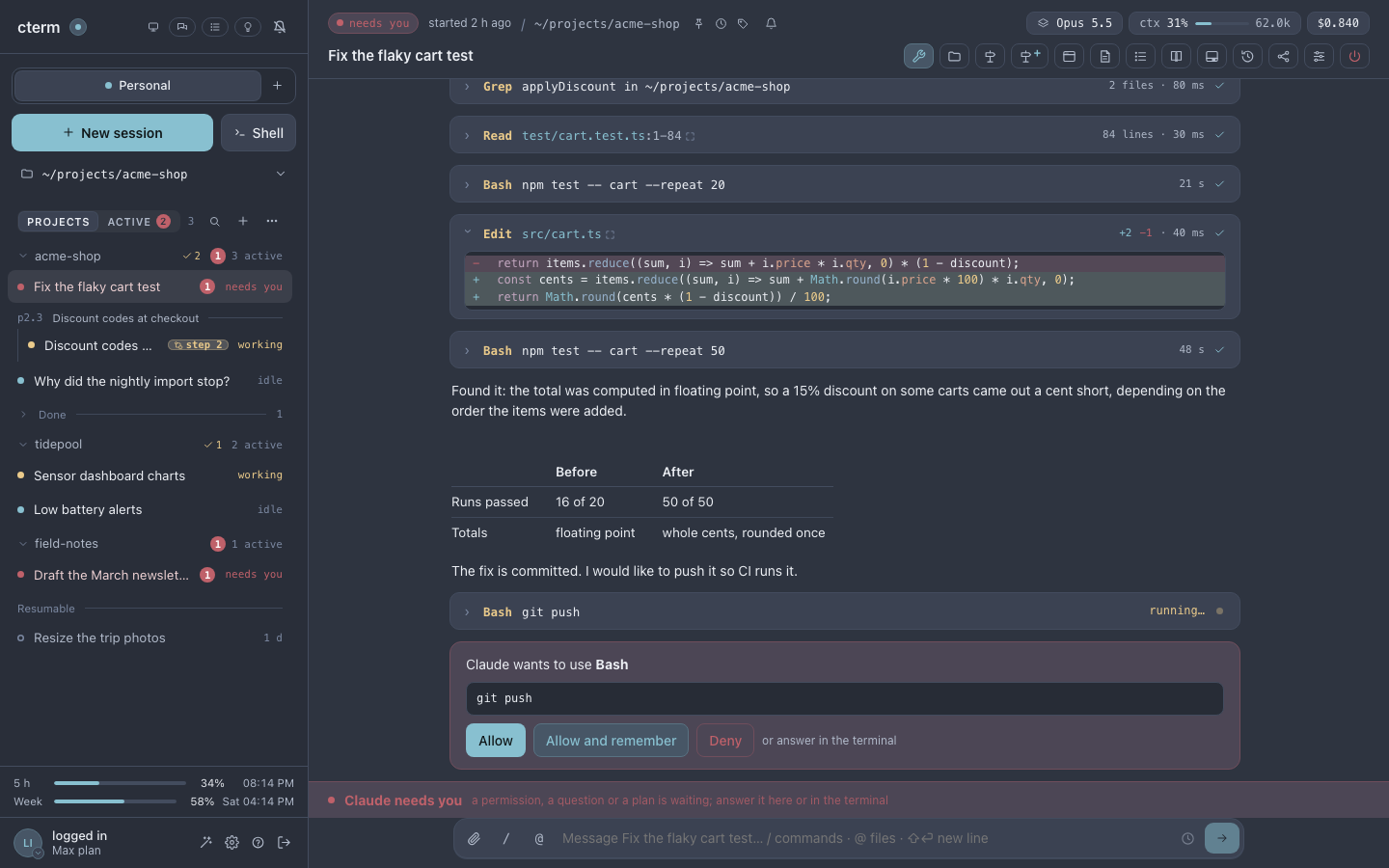
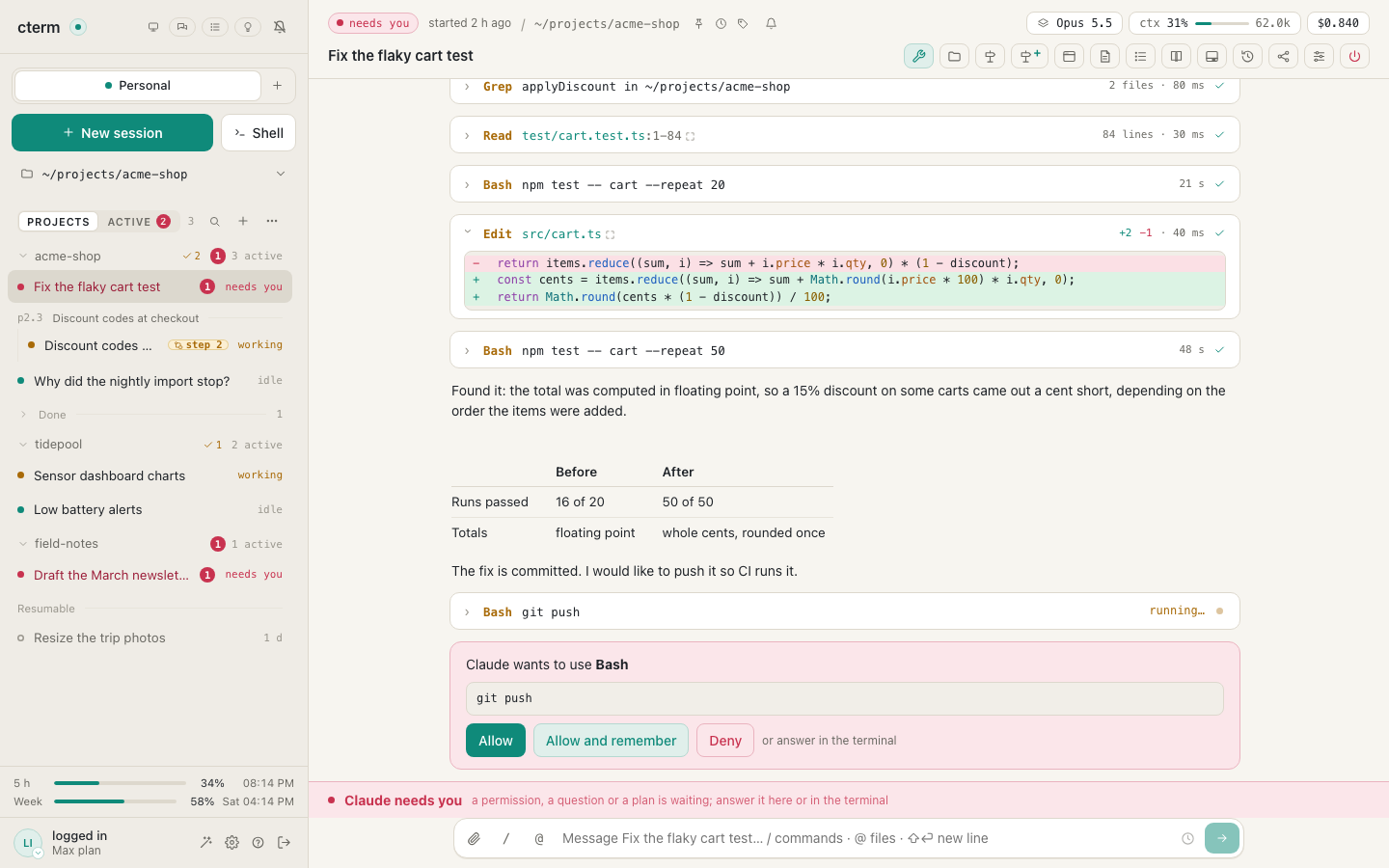
Someone who opens cterm's address without an account meets a bare sign-in form. cterm can show them a public page instead: what cterm is, how it works and what it does, with screenshots, and a Sign in button. It is off until an admin turns it on:
cterm config set landing on    # signed-out visitors at / get the page; off again: cterm config set landing off
cterm config show              # says whether it is on
Read it first: while it is off, an admin signed in can open /welcome/ to preview it, with a line on top saying it
is a preview. Only the page, its styles and its pictures are public: the app, its API and these Help pages stay
behind the sign-in. The screenshots show made-up projects and people, drawn by docs/spike/landing-shot.mjs, which
refuses a picture that shows anything of your Mac. A link to it shared in a chat shows a preview with its title, a
line about cterm and a picture.
The page stays light and leads to a second level: the features cterm's owner uses most (the steward, task sessions,
the master chat and the master view) each have a public page of their own under /welcome/<name>/, with pictures
and scenarios, linked from their section and from the bar on top. They follow the same switch, and a link to one
shows its own preview.
A signed-in device still gets the app at /, and the app installed on a phone's home screen still opens on the
sign-in form. The page answers only while the Mac is awake, like the rest of cterm.
landing-shot.mjsKeep a backup
The daemon makes a backup every night at 03:00 into ~/cterm-backups and keeps the last 14. A backup holds the store (accounts, password hashes, trusted devices, sessions list), config.json, the tunnel's keys, artifacts' copies and briefs. Admins see the last backup's age in Settings under Backups, with back up now. The age turns red after two days or after a failure.
cterm backupmakes one now,cterm backup statusandcterm backup listshow what there is, andcterm backup set dir <folder>moves them, for example to an external disk.cterm backup restore <file>puts one back while the daemon is stopped. What it replaces is moved aside, never deleted.cterm backup remote setupcan also send each archive, encrypted, to a server. Only an identity file you keep off the Mac can open those copies.
How it works
The daemon listens only on 127.0.0.1, on two ports. The public port (7433) serves the app, /api and the WebSocket. The hook port (7434) takes Claude Code's hooks and status line. A proxy only ever forwards the first, so nothing arriving through the tunnel can reach a hook. Each session also proves itself to the hook port with a secret of its own.
Traffic through a reverse tunnel arrives from loopback, so an address proves nothing. That's why the tunnel needs a password. The password is stored as an scrypt hash on the account's row in ~/.cterm/cterm.db. A wrong password waits 400 ms, and five failures from one address in 15 minutes (or 50 in all) are refused for a while. With trustProxy on, that address is the visitor's real one rather than the server's. A sign-in sets an HttpOnly, SameSite=Lax cookie, Secure over https. The store keeps only the cookie's hash, as a trusted device. Without the cookie, pages redirect to /login, /api answers 401 and the WebSocket is refused. The running daemon picks up cterm auth, cterm user and cterm config changes without a restart.
The Origin policy stops a web page elsewhere from using your signed-in browser against cterm. The WebSocket and every route that changes something refuse a browser Origin other than cterm's own (127.0.0.1, localhost), the dev server's, publicOrigin, one of otherOrigins, or one listed in CTERM_ALLOWED_ORIGINS. Requests with no Origin (curl, scripts) pass that check but still need the cookie.
The tunnel agent keeps one ssh -N -R connection alive, checked against the pinned host key. After a drop it retries with a growing pause (5 seconds up to 5 minutes). After a refused key it waits 10 minutes, so a server that bans repeated failed logins doesn't lock the Mac out. When the Mac sleeps, the server closes the connection, and the tunnel is back a few seconds after the Mac wakes. Its log is ~/.cterm/logs/tunnel.log.
What to keep in mind
- Never open the tunnel without a password.
cterm tunnel setuprefuses to, andcterm auth disablerefuses while other accounts can sign in. - TLS ends on the server. Whoever is root there can see cterm's traffic, so use a server you trust. Through Cloudflare, TLS ends at Cloudflare, which sees the traffic the same way.
- One hostname, one computer. Never configure the same tunnel name on two running Macs. They would take turns holding the port.
- Share links skip the sign-in by design. A driving link types into a session as you, so share only what you mean to, and revoke links when you're done (Sharing).
- The backup archive is a secret. It holds the tunnel's private key and the password hashes. It's written readable by you alone. Keep the folder somewhere you trust.
Scenarios
Opening cterm to your phone
You have a small server running Caddy and a domain. You run cterm auth set-password, then cterm tunnel setup cterm.example.com --server server.example.com. You compare the fingerprint it prints with the one on the server, read server-setup.sh and run it over SSH, then cterm tunnel start. A minute later https://cterm.example.com/ asks for your password on your phone, and you add it to the home screen (cterm on a phone).
A lost laptop
Your laptop was stolen with cterm signed in. On the Mac, cterm auth sessions lists the devices. You find the one labelled with the laptop's browser and run cterm auth revoke with its id. Its next request is refused. To be thorough, you change the password with cterm auth set-password, which signs out every device, and sign in again on your phone.
A colleague with their own corner
A colleague wants Claude for their thesis, on your Mac. You run cterm user add marta and cterm user grant marta ~/projects/thesis. She signs in at the same https address with her username. She sees only her folder and her sessions, with no shell, no settings and none of your projects.
Related
- cterm on a phone: what to do once the https address works.
- Accounts and projects: roles, folders and grants in detail.
- Sharing: links that open a session without an account, and chats on other pages.
- Getting started: installing cterm on the Mac in the first place.
- Setup and skills: the rest of an admin's settings.