
Your own machine
An account on someone's cterm normally runs its sessions on that person's computer, on their Claude login. Linking a machine of your own changes where: your sessions, projects and files live on your machine and run on your own Claude, while you keep signing in at the same address and using the same app.
What it is for
- Your files, your Claude. The work happens on your laptop or desktop, in your folders, on the Claude plan you are logged into there. Nothing of yours runs on the server, and the server never sees your Claude login.
- Nothing to open on your side. Your machine dials the server; you open no port and need no domain.
- One address for everyone. The server keeps the sign-in, the accounts and the app's address; each person's sessions run wherever their machine is.
How to use it
- Install cterm on your machine the way Getting started describes (clone it,
npm install,npm run build,npx cterm setup) and log Claude in there (claude). The app athttp://127.0.0.1:7433/on that machine should open. - Make a token. In the app, at the server's address, open the settings (the cog at the foot of the sidebar). The Your machines card has + add a machine: give it a name (Laptop, Office Mac…) and choose make a token. The card shows the token once, inside the command to run.
- Run the command on your machine:
cterm runner setup <server> <token> --name "<name>". It saves the link and starts the runner agent, which says "linked" within seconds. - Reload the page. From now on the app shows your machine's sessions and projects. The settings card lists the machine as online, with its host name and cterm version.
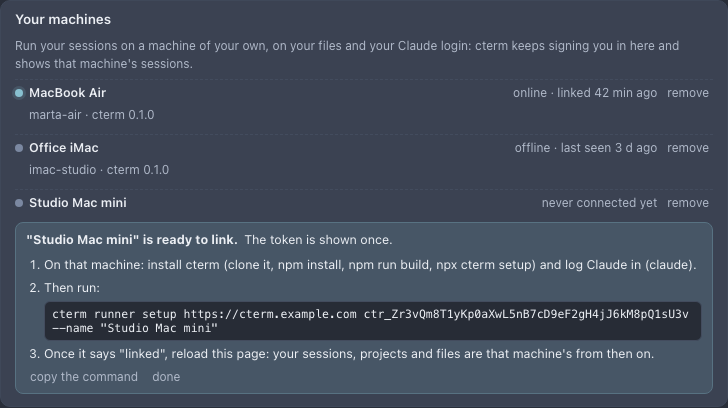
machines-shot.mjsThe account must be a user account (an admin account administers the server and runs there), the server must have a password, and no session of yours may be running on the server when you make the token: close them first.
On your machine, cterm runner status says whether the agent is linked and shows its last log lines, cterm runner
stop and start take it offline and back, and cterm runner remove forgets the link there. To unlink the account,
remove the machine from Your machines: your account is the server's again, and what is on your machine stays there.
How it works
Your machine runs a whole cterm, with its own sessions, projects, files and settings, and you are its admin. The runner agent keeps one outgoing connection to the server, authenticated by the token (only its hash is stored on the server). When you sign in at the server, every page, API call and live connection of your account goes through that link to your machine's cterm and back. The server's own cookie never leaves the server, and it checks the page's origin before anything is passed on.
While your machine is offline (asleep, the agent stopped), the server shows a page saying so, with when it was last seen and how to start it, and reloads itself until the machine is back.
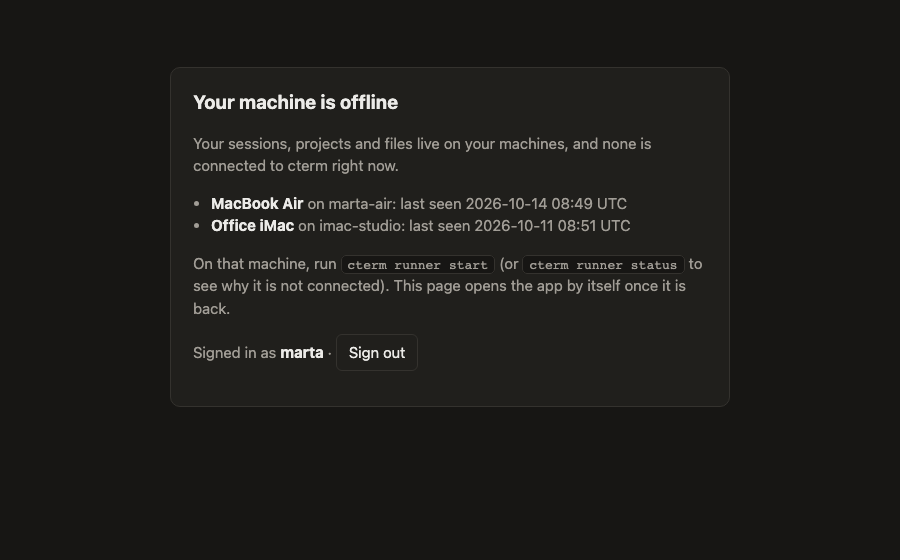
machines-shot.mjsAn admin sees every linked machine in the settings (Linked machines) and a tag on each linked account, and can
remove one. cterm runner list on the server lists them too.
Scenarios
A friend with their own Claude plan
Marta has an account on your cterm and her own Claude subscription. She installs cterm on her MacBook, logs Claude in, makes a token in Your machines and runs the command it shows. Her sessions now run on her MacBook, on her plan, in her folders, and she still opens the app at your address from her phone.
A laptop that sleeps
Marta closes her laptop. The next time she opens the app on her phone it says her machine is offline, last seen ten minutes ago. She opens the laptop; the agent links again by itself and the page opens the app.
What it does not do yet
A project lives on one install: projects shared with you on the server are out of reach once you are linked, and links to share a session or a chat on another page made on your machine do not open through the server. The runner's commands set up a LaunchAgent, so the machine is a Mac.
Related
- Remote access: the server's address, password and tunnel.
- Accounts and projects: roles, folders and shared projects.
- Getting started: installing cterm.