
The terminal and the prompt box
Every Claude session in cterm is Claude Code's own terminal program, and the terminal pane shows it exactly as it draws itself. Under the rich pane sits the prompt box, where you write to Claude with completion for commands and files, attach images, recall earlier prompts and stop a turn. This page covers both, and the controls around them: compact and clear, retry and running commands.
What it is for
The rich pane is for reading; the terminal is the truth. When Claude Code shows something no card covers, an unusual dialog, a picker or its own status, you open the terminal and see the real screen. Everything you type there goes straight to Claude Code. The prompt box is for the everyday case: writing a prompt comfortably, especially on a phone, without the terminal's keyboard rules.
How to use it
Open the terminal
Press Cmd/Ctrl+J to show or hide the terminal pane beside the rich one, or choose Terminal in the session's
row menu. It also opens by itself when Claude waits on a dialog that no card answers. Click into it and a keys go
to the terminal badge confirms that your keystrokes now reach Claude Code, including Ctrl+K, Ctrl+N and the
rest of its own shortcuts.
In the terminal pane:
Cmd/Ctrl+Fopens Find in terminal: Enter for the next match,Shift+Enterfor the previous, Esc to close.Cmd/Ctrl+Ccopies a selection (with nothing selected it sends^C), andCmd/Ctrl+Vpastes.- With text selected, an Ask about this button in the corner quotes it into the prompt box.
- Fit and Fixed in the head choose whether the terminal follows the pane's size or keeps a set number of columns and rows and scrolls; click the size to change it.
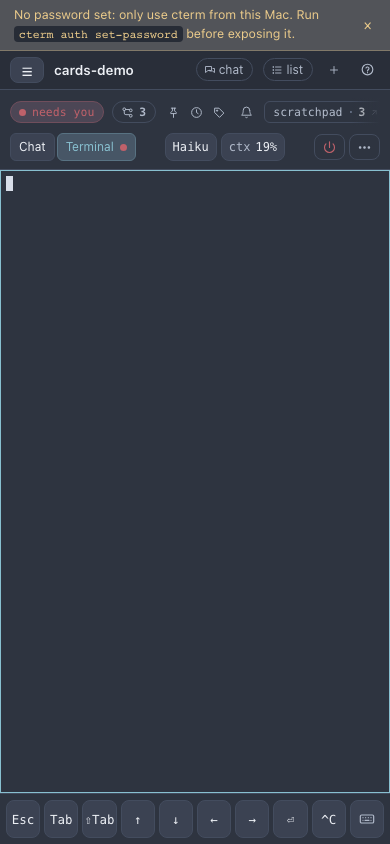
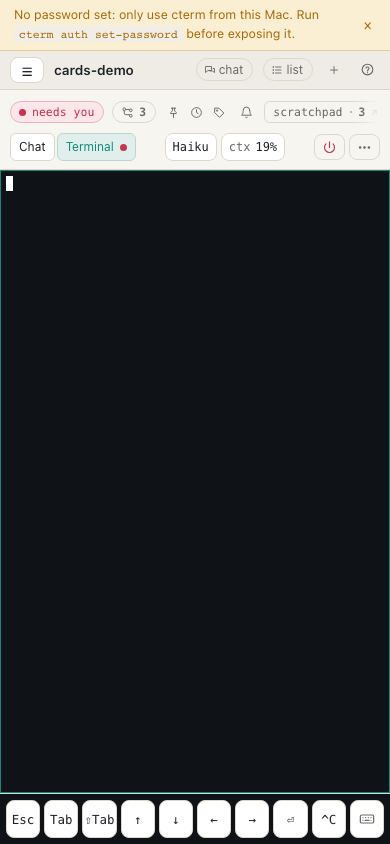
On a phone the terminal is a page of its own: swipe left, or tap Terminal in the head's Chat | Terminal
tabs. A row of keys under it gives you Esc, Tab, Shift+Tab, the arrows, Enter and ^C, which a soft keyboard
lacks, and a keyboard button to type.
ui-shots.mjsOpen a shell
Shell beside New session in the sidebar starts a login shell in the folder shown below it. A shell session is the terminal alone, with no rich pane or prompt box; it lives on the same PTY host as the Claude sessions, so it survives a daemon restart and can be reopened from any device.
Write a prompt
Type in the box and press Enter to send; Shift+Enter starts a new line. On a touch screen Enter makes a new line
and the Send button (the arrow at the right of the box) sends. What you type and do not send stays with that
session in this browser, so you can switch sessions and come back to your draft. A quote from Ask about this, or
text the brief puts in the box, joins the draft of the session it came from and no other.
The box is one line high until your text needs more, with its tools on that same line, so the conversation keeps
the room. As soon as the text runs past one line it takes the box's whole width, the tools move to a row under it,
and the box grows up to about 40% of the window before it scrolls inside itself. The keys the box takes and the
app's shortcuts (Cmd/Ctrl+K to jump to a session, N for a new one, Cmd/Ctrl+I for an idea) are in the Send
button's tooltip: hold the pointer over it.


ui-shots.mjs- Type
/at the start for the session's slash commands, with their descriptions, including skills and plugin commands. Arrow keys move, Enter or Tab picks, Esc closes the list. - Type
@for a file picker over the project folder and the session's scratchpad. - Press
↑in an empty box to step back through the prompts you sent in this session, and↓to come forward.
The / and @ buttons at the left of the box insert the same characters; on a phone they sit behind the +.
Attach files and images
Paste an image, drop files anywhere on the session, or use the paperclip. Each file uploads to the session's
uploads folder and shows as a chip, and a short placeholder such as [image 1] marks its place in your text. When
you send, the placeholder becomes the file's full path, so Claude reads the file from where you mentioned it. The ×
on a chip removes it and its placeholder.
A drop does not have to hit the box: the chat, the terminal and the session's head take it too, and so does a session's chat in the dock or on the master view. While you drag files over the session, a dashed line goes around it and the box lights up; let go and the files land in the box together, with the cursor in the text. The files drawer and the idea palette keep their own drops: a file dropped there goes to the folder or the idea, not the prompt. Dropped anywhere else in the app, a file does nothing, where the browser used to open it in the tab.
Send while Claude works
You do not have to wait for a turn to end. A prompt sent while Claude works is queued by Claude Code itself; the pane shows it with queued · Claude has not read it yet until Claude takes it in, either at its next step or when the turn ends.
Stop a turn
While Claude works, the box shows Stop (the square beside Send), which sends Esc to the session, exactly as pressing Esc in the terminal would. The turn ends where it is.
Compact or clear the context
Click the context chip in the head (ctx 84%) or use the row menu:
- Compact: Claude replaces the conversation with a summary.
- Compact with a focus…: you say what the summary must keep; it is sent as
/compactwith your words. - Clear…: Claude starts the conversation over. cterm asks first; the session keeps its name, marks and brief, and the transcript stays on disk.
Picked while Claude is working, the command waits for the turn to end, shown on the chip, with Cancel until it goes. The pane marks the point with a "Context compacted" or "Conversation cleared" line.
Retry a failed turn
When a turn fails on an API error, the line under it offers Retry, which sends the same prompt again. After a usage limit it also offers the other models (the session restarts on the one you pick, then sends the prompt) and, when the error names the reset time, Retry at that time, which cterm keeps even with the tab closed. A waiting retry shows with Cancel.
A task session on a roadmap item does not wait for you there: when its turn, the kickoff included, stops on a usage limit, cterm restarts it once on the project's executing model (the one picked for the item's executor, else the preset's for its size, else Opus) and sends the same prompt again. A line under the failed turn says so, and the model chip is tagged fallback. An overload, any other error, or a limit on that fallback too, stays failed with the Retry line as above.
Run a command Claude suggested
Every code block has Copy. For admins, a shell block in Claude's answer, or a one-line block that reads as a command, also has Run on their own sessions. In a task session with a worktree it asks where to run it first. The output appears in a card under the answer, with its colours, the exit code and the time, Stop while it runs, Copy output, Run again (which asks before repeating) and Send to Claude, which quotes the output into the prompt box for you to send.
How it works
The PTY host owns each session's pseudo-terminal and keeps a screen of it with its scrollback. When you open the terminal pane, the browser gets that screen and then the live bytes, unchanged, drawn by xterm.js; the browser acknowledges what it has drawn, so a slow connection cannot flood it. Keys you type go back as the same bytes.
The prompt box sends your text to the daemon, which types it into Claude's input rather than pasting it, so it
reaches the model as your own words; prompt-delivery.ts waits for Claude to be at its prompt and reports
whether the prompt landed, was queued or failed. Claude Code's prompt hook then puts your bubble in the pane.
Stop is an Esc key sent the same way. Compact and clear are /compact and /clear typed at the next idle moment
(context-op.ts); a timed retry is held by the daemon (retry.ts). A command you run is started by the daemon in
the project folder or the worktree, and its output is streamed to the card; Claude does not see it unless you
send it.
Scenarios
A dialog the pane cannot answer
Claude Code shows a choice that no card covers. The terminal pane opens by itself beside the chat; you read the
real screen, pick with the arrow keys and Enter, and press Cmd+J to hide the pane again.
A screenshot and a follow-up
You paste a screenshot of a broken layout and write "the footer overlaps here: [image 1]". While Claude reads the CSS you remember something and send "keep the mobile breakpoint as it is"; it shows as queued and Claude picks it up at its next step.
Out of usage at the worst time
A long refactor stops with a usage limit until 12:15. You press Retry at 12:15 PM, go to a meeting, and cterm sends the prompt again on time. Later, at 84% context, you choose Compact with a focus… and ask it to keep the decisions on the API.
Related
- Sessions and the rich pane: the list, the cards, the head and prompts sent later.
- Voice: the microphone in the prompt box.
- Codex and Gemini sessions: other CLIs, shown as terminals.
- Task sessions: worktrees, where a command can run.
- cterm on a phone: the terminal page, the key row and the prompt box on a small screen.