
Codex and Gemini sessions
cterm can run OpenAI's codex and Google's gemini command-line agents as sessions of their own, next to your Claude sessions. They're listed in the same projects, show their state in the sidebar, notify you when a turn ends, and can be resumed and shared by link. A Codex session shows the same chat view as a Claude session: your prompts, Codex's answers, the commands it ran with their output and the files it changed, as cards, with Codex's own terminal a click away. A Gemini session is still a terminal session: you work in the CLI's own interface, with a head on top.
What it is for
- Compare providers on the same project. Ask Codex the same question you gave Claude, in the same folder, and read both answers from one place.
- Keep every agent in one list. Your Codex work no longer lives in a separate terminal window you have to remember. It sits in the project's group, with its state and its age.
- Follow it from anywhere. Its state and its turn's end reach the sidebar, the notifications and your phone like a Claude session's. A Codex session's turns read as a chat, on a phone too. A link can show it to someone else.
How to use it
Codex and Gemini sessions are for admins. A user account runs Claude sessions only, since these CLIs would run on the Mac's own sign-in for them.
Get the CLI ready on the Mac
cterm doesn't install either CLI and doesn't keep any key for them. Install the CLI on the Mac so it's on the sessions' PATH, and sign in once the CLI's own way (for Codex, codex login). You can do both from a Shell session in cterm. Then check what cterm sees:
cterm agents # the agent CLIs found on this Mac, with their versionscterm looks again at most once a minute, so a CLI you just installed shows up shortly.
Start a session
- In the sidebar's New session form, pick the folder, as you would for Claude.
- Click Codex or Gemini, under New session and Shell. A button shows only for a CLI cterm found, and only for an admin.
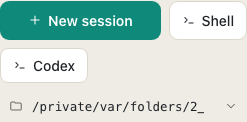
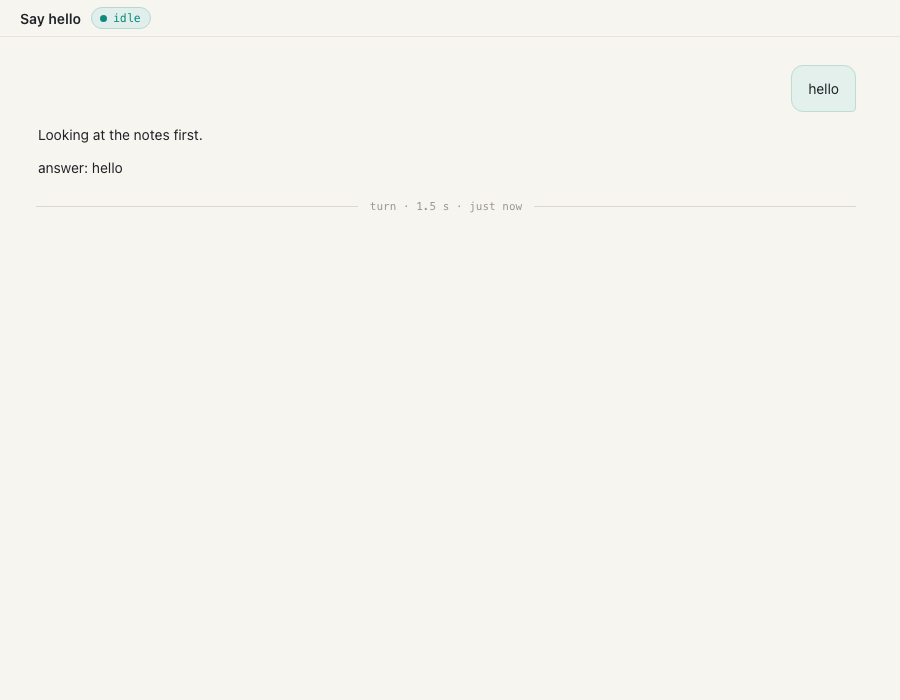
agent-session-test.mjsA Codex session opens on its chat view, and a Gemini session on its terminal. Either is named after the CLI ("Codex") until Codex gives the conversation a title from your first prompt. You can rename it like any session. A Codex or Gemini session has no role, model or effort picker and no first prompt in the form: you type into the CLI, or into the box under a Codex session's cards.
A Codex session's chat view
A Codex session's pane follows the conversation the way a Claude session's does:
- Your prompts as bubbles, whether you typed them in the box, in the terminal, or sent them from elsewhere.
- Codex's answers as they land: its commentary while it works, and its final answer when the turn ends.
- The commands it ran, each a card with the command as Codex ran it, its output, and a failure marked when it exited with an error.
- The files it changed, each a card with the diff of an edit, the content of a new file, or the file it deleted.
- The end of each turn with how long it took.
The cards come from the file Codex keeps for each conversation, read about once a second, so a long turn shows its commands while Codex is still working. They're read again after a reload, after cterm restarts, and when you open an ended session, so the history is there without resuming it.
The box under the cards ("Ask Codex…") sends a prompt to Codex as cterm session send would. It's a plain box: no slash commands, @ files, attachments or scheduled sends, which are Claude's. A prompt into an ended session resumes it.
The terminal is a click away. On a phone, the Chat and Terminal tabs in the head switch between them, as for Claude. On a desktop, press Cmd/Ctrl+J or pick Terminal in the session's menu in the sidebar, and Codex's own interface opens beside the cards, byte for byte what Codex draws. When Codex asks for approval, the terminal opens by itself and a "Codex needs you" line over the box takes you there. Answer it in the terminal: there's no card for Codex's approvals.
What the head shows, and what it leaves out
- The head has the session's name, its state pill (working, needs you, idle), the folder, the marks, Fit and Fixed for the terminal's size, and Close.
- The model chip names the provider and the model the CLI reports, for example "Codex · gpt-6.1-sol low". It is read-only. Its tooltip gives the CLI's version, that it runs on this Mac's own sign-in, and the conversation Resume goes back to. To change the model, use the CLI's own command in the terminal.
- Left out for now: the files drawer, the context, cost and git chips, the brief, the index, Retry on a failed turn and the panels that read Claude's own files, and for Gemini the cards too. They're hidden rather than broken.
Working, needs you, and the end of a turn
cterm reads Codex's screen every second: its "Working" line means working, and an approval question means needs you, with the note "Codex asks in the terminal". Answer it there. At the end of each turn Codex tells cterm through its notify command, so the sidebar marks the session finished, and you get "needs you" and "finished" notifications, push on your phone included, as for a Claude session.
Close and resume
Close ends the process, and the session stays in the list. Resume on an ended session starts it again. Codex goes on with the same conversation; Gemini starts afresh.
Send it prompts from elsewhere
A prompt can reach a Codex or Gemini session without you typing it. cterm session send <name> "<prompt>" from another of your sessions, or a verdict on a queue entry that the session added, is pasted into its box once the screen shows it idle. It's held while the session works or asks, and an ended session is resumed for it. The master chat sends to them too: its card shows the answer from the end of the session's turn.
Share one by link
Codex and Gemini sessions are shared the same way as Claude's: Share in the head, Watch only or Watch and drive, the same ends (Sharing).
- A Codex session's link page shows its chat: your prompts, Codex's answers and the ends of turns, live. Like a Claude session's link, it leaves the tool cards out. A Gemini session's page shows its terminal live, read-only, at your terminal's size.
- A driving link adds a prompt box ("Ask Codex…") that types plain prompts into the session. Slash commands and
!are refused, and the only key it sends is Esc, through Stop. - A link never approves. The CLI asks for approval in its terminal, where a link can't type, so it waits for you. There is no Let it approve tool use tick for these sessions.
- A session started with settings that never ask can still be shared for driving, with a stricter warning: whatever the viewer types runs without asking. For Codex that's
approval_policy = "never"in its config; for Gemini, its YOLO setting.
agent-session-test.mjsHow it works
A Codex or Gemini session is a kind of session beside Claude, shell and login. The daemon spawns the CLI in a PTY on the PTY host, like any session, so it survives a cterm restart. Before starting it, cterm removes the other providers' keys from its environment (a Codex session gets no Anthropic or Google keys, and so on) and the CLIs' own session markers. It adds the session's id and token, so cterm run from inside it acts as you.
Codex is started with every setting on its command line (-c). Nothing is written under ~/.codex or into your project. cterm turns off Codex's update offer, because a prompt typed into that menu once ran the installer. It hooks a notify script in front of any notify command you already have, so yours still runs. It passes cterm's rules and the project's rules as Codex's developer instructions, after a line saying they were written for Claude Code sessions. Codex's model and approval policy are read from the top of its config.toml, read-only.
The state comes from the screen, the way cterm reads Claude Code's dialogs (agents.ts). Gemini is handled the same way from its documentation, but it hasn't been checked against the real CLI yet. It gets no rules and no notify, so its turn's end is read from the screen going idle after work.
A Codex session's cards come from the rollout Codex keeps for each conversation, a file under ~/.codex/sessions (or $CODEX_HOME/sessions), read only. cterm finds it by the conversation's id once Codex's notify gives it, or, during the first turn, by the session's folder and start time. It turns Codex's records into the same events a Claude transcript gives, so the pane, the share page and the phone show them with the cards they already have (rollout.ts). A record cterm doesn't know is skipped. The terminal stays byte-exact, and the state still comes from the screen.
Scenarios
A second opinion on a bug
Claude proposed a fix for a flaky test in your project. You want another view before merging, so you open the project's folder in the New session form and click Codex. You paste the same description of the bug into Codex's box. When its turn ends, the sidebar marks the session finished and you read both answers side by side, switching between the two sessions in the list.
Watching from the phone
You leave Codex refactoring a module. On the bus, you open the session and read the chat: the commands it ran, their output, the files it changed. A notification says it needs you; the terminal page shows Codex asking to run a command, and you answer with the key bar's arrows and Enter (cterm on a phone). When the turn ends, the "finished" notification arrives and the answer is in the chat.
Showing a colleague
A colleague wants to see how Codex handles your codebase. You open Share on the Codex session and make a watch link with no end. They follow Codex's answers live from their browser while you keep working. When you're done, you click Revoke.
Related
- Sessions and the rich pane: the cards a Codex session shares with Claude's, and what only Claude's have.
- The terminal and the prompt box: the terminal pane these sessions live in.
- Sharing: links to watch or drive any session.
- Accounts and projects: why only admins start these sessions.
- cterm on a phone: the key bar for answering a CLI from a touch screen.