
cterm on a phone
cterm is the same app on a phone as on the Mac, laid out for a narrow touch screen. The chat and the real terminal become two pages you swipe between, the session list slides in from the side, and a key bar gives you the keys a soft keyboard lacks. You can install it on the home screen, so that it opens like an app and tells you when a session needs you, even with the app closed.
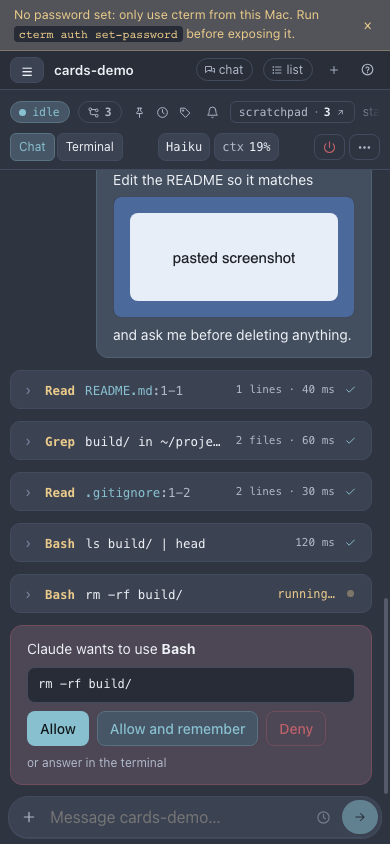
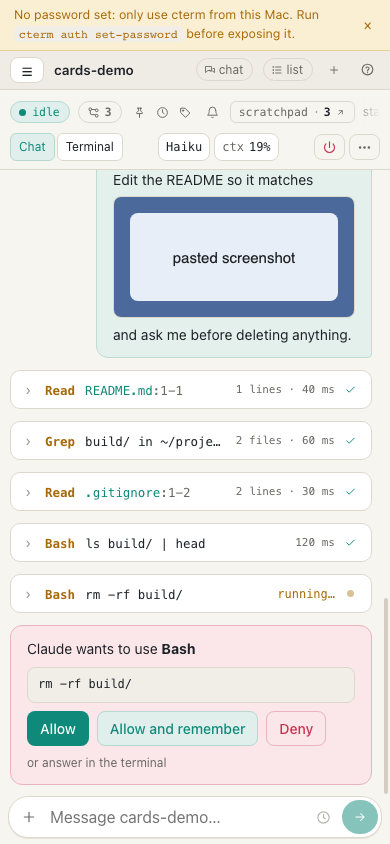
ui-shots.mjsWhat it is for
Claude works for minutes at a time, and much of what it needs from you is short: allow a command, pick an option, answer a question, read a summary, send the next prompt. None of that needs a desk. With cterm on your phone you can start a session before you leave, follow it from the sofa or the train, answer its cards when the notification arrives, and check what it did before you're back at the Mac.
Nothing runs on the phone: the sessions keep running on the Mac, so closing the app or losing signal stops nothing.
How to use it
To reach cterm from a phone you need its https address, which you get by setting up remote access. Open that address in the phone's browser and sign in once.
Find your way around
- The ☰ button at the top left opens the session list as a drawer over the screen: the projects, their sessions, the New session form and the account's foot. Tap a session to open it; tap outside the drawer to close it.
- The top bar shows the open session's name, plus buttons for the master chat, your list and Help (the ?, which opens this documentation; in the home-screen app it opens in the same window, with a link back). The idea button and the connection badge move into the drawer, and a badge comes back to the top bar only when the connection drops.
- The session head has two rows. The first is the status line: the state pill, the worktree chip, the marks, the bell and the other chips. It scrolls sideways when it is too long for the screen, with a fade on the edge that has more.
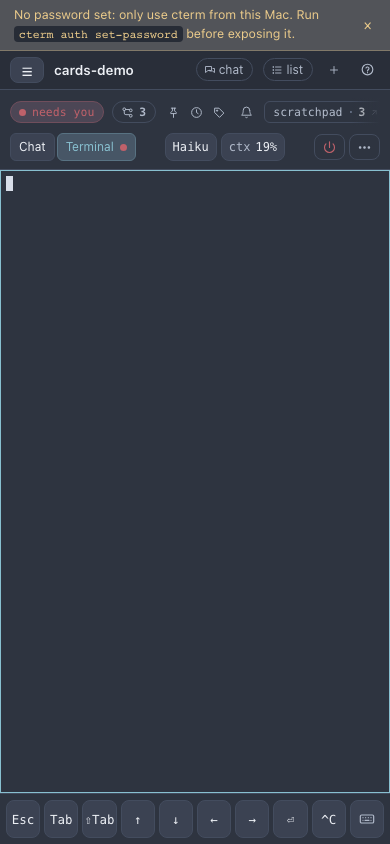
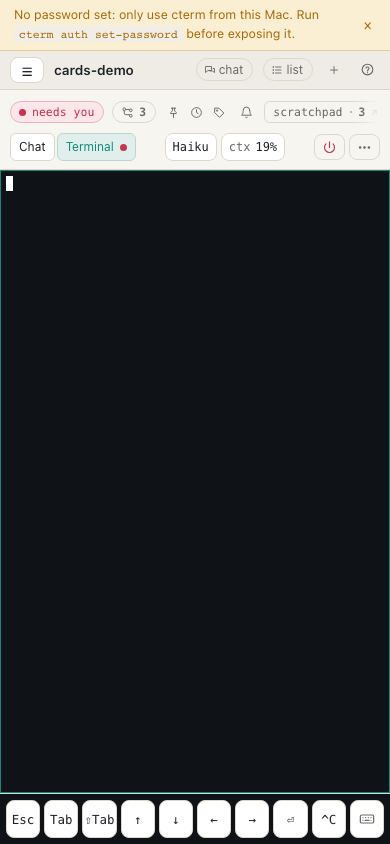
- The second row holds Chat and Terminal, the model chip in short form (for example "Fable xhigh") and the context chip ("ctx 19%"). Tap either chip for the same menu as on a desktop. Then come Resume on an ended session, Close, and More.
Use the More menu
More (the three dots) lists every other action of the head, with its icon and its count: Tools, Files, Roadmap, Task, Add to the roadmap, Artifacts, Brief, Index, Memory, Send to a tab, History, Share, Setup and Close and clean up, each where it applies to the session and your account. While a panel you opened from it is open, More stays marked. Share opens its panel right under the More button.
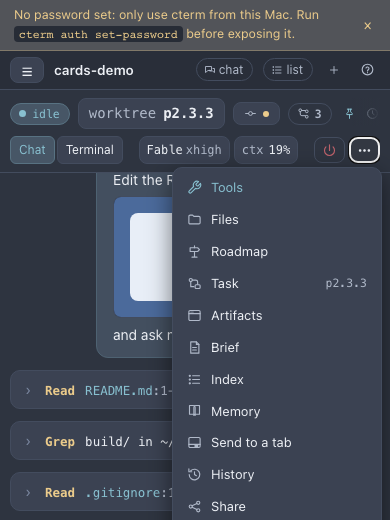
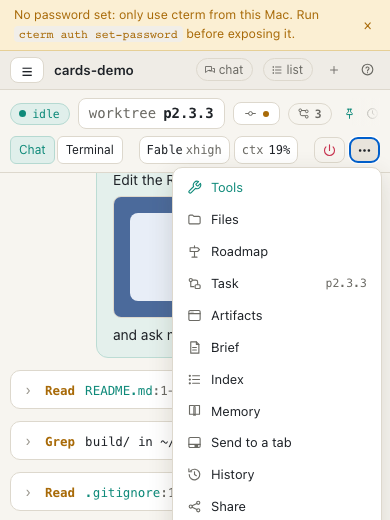
ui-shots.mjsSwitch between the chat and the terminal
- Swipe left on the chat to bring up the terminal, and right to go back. The Chat and Terminal tabs do the same.
- When Claude Code shows something only the terminal can answer, cterm turns the pager to the terminal for you. A dot on Terminal says the session needs you there.
- The terminal stays connected when you swipe back to the chat, so nothing is lost.
- While the terminal is showing, Fit and Fixed sit in the head's row: Fit sizes the terminal to the screen, Fixed keeps a set number of columns and rows and scrolls.
Type into the terminal
On a touch screen a key bar sits under the terminal: Esc, Tab, ⇧Tab (cycles Claude Code's permission mode), the four arrows, ⏎ (Enter) and ^C (Ctrl+C, twice to quit Claude). The keyboard button at the end raises the soft keyboard so you can type into the terminal itself. Tapping a key doesn't close the keyboard, so you can press an arrow several times in a row.
ui-shots.mjsWrite a prompt
On a touch keyboard Enter starts a new line and the Send button sends (Cmd+Enter or Ctrl+Enter still sends from a hardware keyboard). A long prompt takes the box's whole width, grows to a little under half of the visible screen, then scrolls inside itself. When the keyboard comes up, the app shrinks to the space above it, so the prompt box stays in view.
Install cterm on the home screen
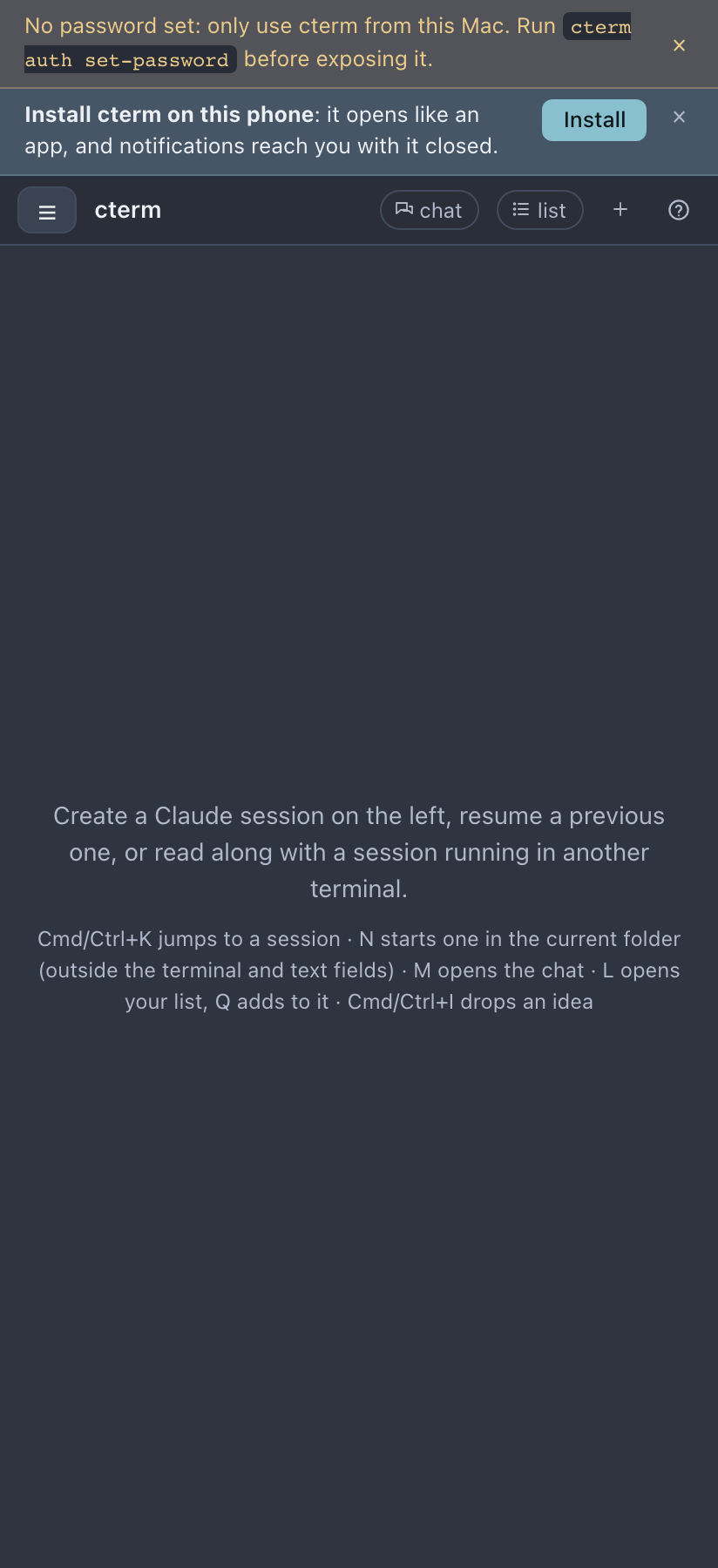
- Android (Chrome or Edge): on a touch device a strip at the top offers Install cterm on this phone. Tap Install for the browser's own install dialog. If you dismiss the strip with ×, the offer stays in the bell's menu as Install the app.
- iPhone and iPad (Safari): Safari has no install button a page can call, so How shows the steps instead. Tap Share in Safari's toolbar, choose Add to Home Screen, then Add. Open cterm from the home screen and sign in once more, because the home-screen app keeps its own sign-in.
Once installed, cterm opens full screen with its own icon. It's the same page and the same account.
pwa-shot.mjsTurn on notifications
Tap the bell in the drawer's head. The popover has two switches:
- In this browser shows notifications while a cterm tab is open.
- When the tab is closed (this device) subscribes this device to push notifications, which the Mac sends even when every tab is closed. After you turn it on, Send a test checks it right away.
You get two kinds: "Claude needs you in …" when a permission, a question or a plan waits, or when Claude ended its turn asking you something (the notification then quotes the question), and "… finished" when a turn ends. Each one leads with the project's name. Tap a notification to open that session. Which kinds each session sends is set from its menu in the list or the small bell in its head: All, Only when it needs me, Muted, or Project default. A comment on a session that names you, is assigned to you or replies to yours ("marta mentioned you in …") is told whatever that level, since it is addressed to you; tapping it opens the session at the comment (Comment on a session). A workflow's notification step, and a run of yours that fails, come as push notifications only; tapping one opens the project page. A monitor whose condition starts to hold or clears, or whose check begins failing, tells the project's owner and whoever asked with Tell me too, whatever any session's level; tapping it opens the project page on that monitor. An answer in the master chat comes as a push while none of your windows shows the chat; tapping it opens the chat on that answer. A session's answer to a chat message comes once that way, not again as "… finished".
On an iPhone or iPad the second switch is disabled in Safari, with a note to add cterm to the home screen first. iOS only allows push for home-screen apps.
What works from a phone
Almost everything. You can start and resume sessions, answer permission, question and plan cards (in the session, or all together from the master chat's Waiting on you), use the terminal, read files from the drawer (a file link opens the viewer), and open the brief, the index and the roadmap. Your task's card opens as a sheet from the bottom. The project page, the master chat, your to-do list and the master view (in one column) all have phone layouts, and so does a project's queue of things waiting for a yes. Voice input uses the phone's microphone, which needs the https address.
How it works
Below 900 px wide, the chat and the terminal are two pages of a horizontal scroll-snap container (Pager.tsx), so the browser itself does the swipe and the snap. Below 600 px the head keeps a few actions in its row and puts the rest behind More (HeadMenu.tsx). The key bar appears only on devices without hover. Each key is sent to the daemon as a terminal key message, the same one the prompt box's Stop uses for Esc.
The install is a plain web manifest. The service worker only handles Web Push and caches nothing, since the daemon always serves the app live. When you turn push on, the browser subscribes with the daemon's own key, and the daemon keeps one subscription per device in its store. A push follows the same rule as the page's notifications, at the level you chose for the session. With push on, the page shows no notifications of its own, so you never get two for one event. Signing out, or revoking the device on the Mac, drops its subscriptions. On the Mac, cterm push status lists the subscribed devices and cterm push test sends a test.
Scenarios
A permission on the train
You started a refactor before leaving. Twenty minutes in, your phone shows "cterm · Claude needs you in Split the parser". You tap it, the session opens on the permission card for rm -rf build/, you read the command, tap Deny and type "keep build/, just clean the cache" in the prompt box. Claude goes on, and you put the phone away.
A dialog only the terminal answers
Claude Code shows a menu that cterm has no card for. The pager turns to the terminal on its own, with the dot on Terminal. You press ↓ twice on the key bar, then ⏎, and swipe right to get back to the chat.
Setting up a new iPhone
You open the https address in Safari and the bell's install row says How. You follow the three steps, open cterm from the home screen, and sign in again. In the bell's menu you turn on When the tab is closed (this device) and tap Send a test. The test notification arrives, and from then on your task sessions reach you when they need an answer.
Related
- Remote access: the https address, the password and trusted devices a phone needs.
- Sessions and the rich pane: the cards you answer from the phone.
- The terminal and the prompt box: the terminal pane and the prompt box in depth.
- Sharing: a link that opens a session on someone else's phone, without an account.
- Voice input: speak a prompt instead of typing it.